Samsung Smart TVs run Tizen, Samsung’s own operating system. Tizen does not use the Google Play Store, so the choice of IPTV player apps is smaller than on Android TV, and some players work differently from what you may be used to. This guide explains how to find and install a player, how “device ID” activation works, and what to do when the app you want is not available.
Check your TV first
Available apps vary by country, model year and software version. Samsung says so on its own support pages, and it is the main reason two people with “the same TV” can see different app lists. Before you start:
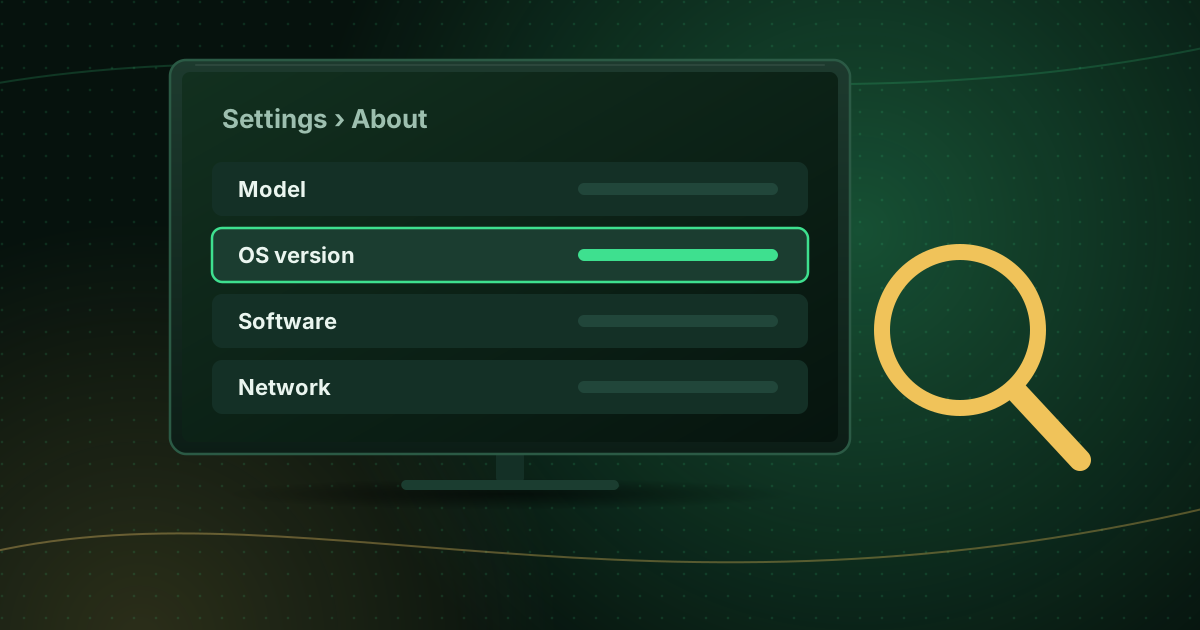
- Note your model and software version under Settings → Support → About This TV (menu names differ slightly between years).
- Install pending updates under Settings → Support → Software Update.
- Make sure you are signed in to a Samsung account; Samsung requires one to download apps.
If you are unsure what your TV runs, see how to find your TV’s operating system.
How to install a player app on a Samsung TV
Samsung’s instructions for downloading apps are:
- Press Home on the remote.
- Open Apps.
- Select the search icon (top-right or top-left depending on the model).
- Type the app name and select it from the results.
- Select Install, then Open when it finishes.
To keep apps updated, open Apps → Settings and turn on Auto Update. Updates only install while the TV is connected to the internet.
What to look for in a Tizen player
Read the app description for:
- Supported login types: Xtream Codes, M3U, or both.
- TV guide (EPG) support.
- How setup works: entering details on the TV, or activation through a website.
- Pricing: many Tizen players offer a free trial period and then charge a licence fee per TV.
Compare the general features in our IPTV player compatibility guide before paying for a licence.
How “device ID” or “MAC address” activation works
Several Smart TV players do not let you type a playlist on the TV. Instead:
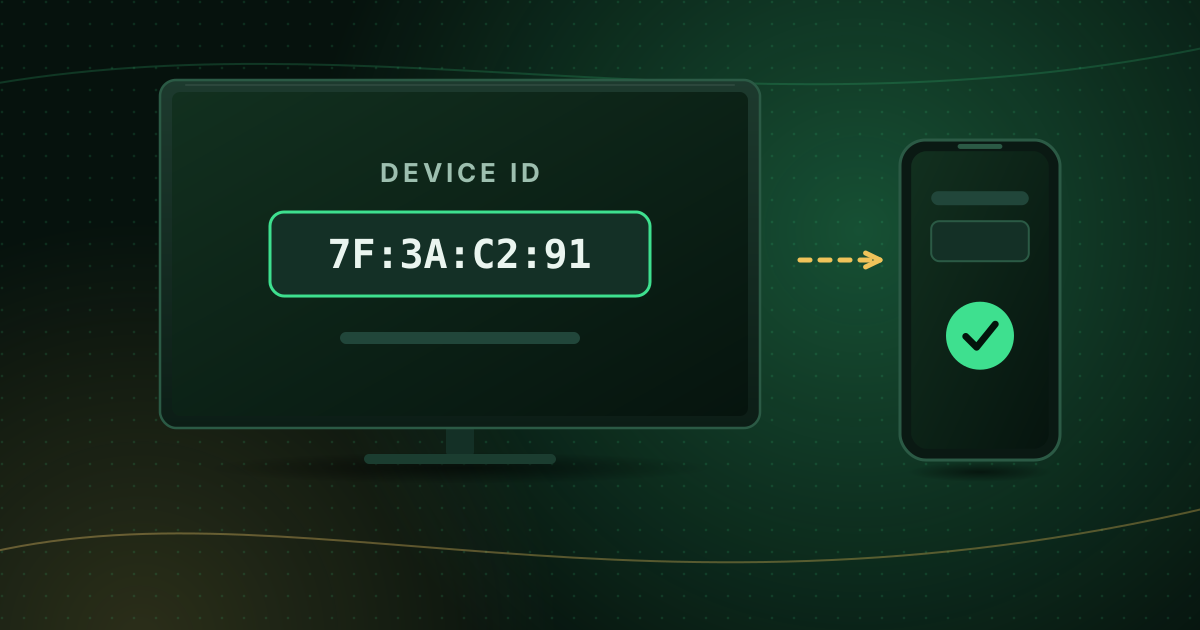
- The app shows a device ID or MAC address on screen when you open it.
- You visit the app developer’s official website on a phone or computer.
- You enter that ID together with your M3U link or Xtream Codes details.
- You restart the app on the TV, and it downloads your playlist.
This avoids typing long URLs with a remote, but it means your login details are stored by the app developer. Only use the official website named inside the app, and check its privacy policy. Never enter your details on a site you reached through an advert or a message.
Adding your playlist directly on the TV
If your player accepts details on screen:
- Xtream Codes: enter the server URL exactly as provided (including
http://and any port), then your username and password. - M3U: paste or type the full playlist URL.
Typing mistakes are the most common reason a login fails. If yours does, see how to fix “authorization failed” errors.
When the app you want is not on your Samsung TV
You have three practical options:
- Choose another player that is available in your Samsung store and supports your login type.
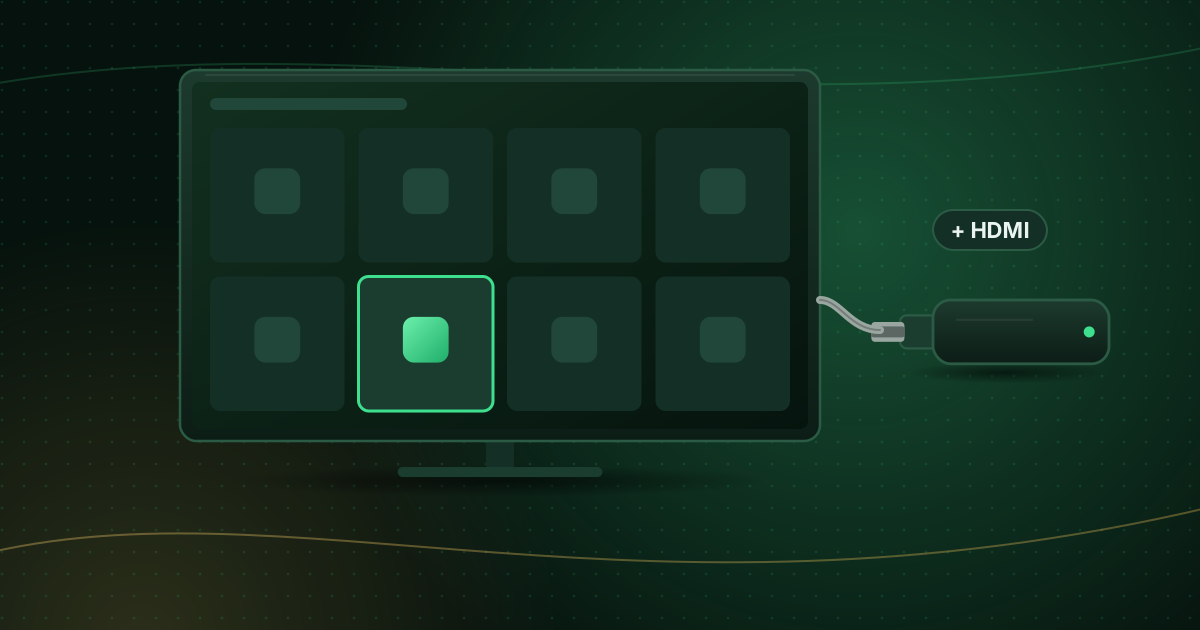
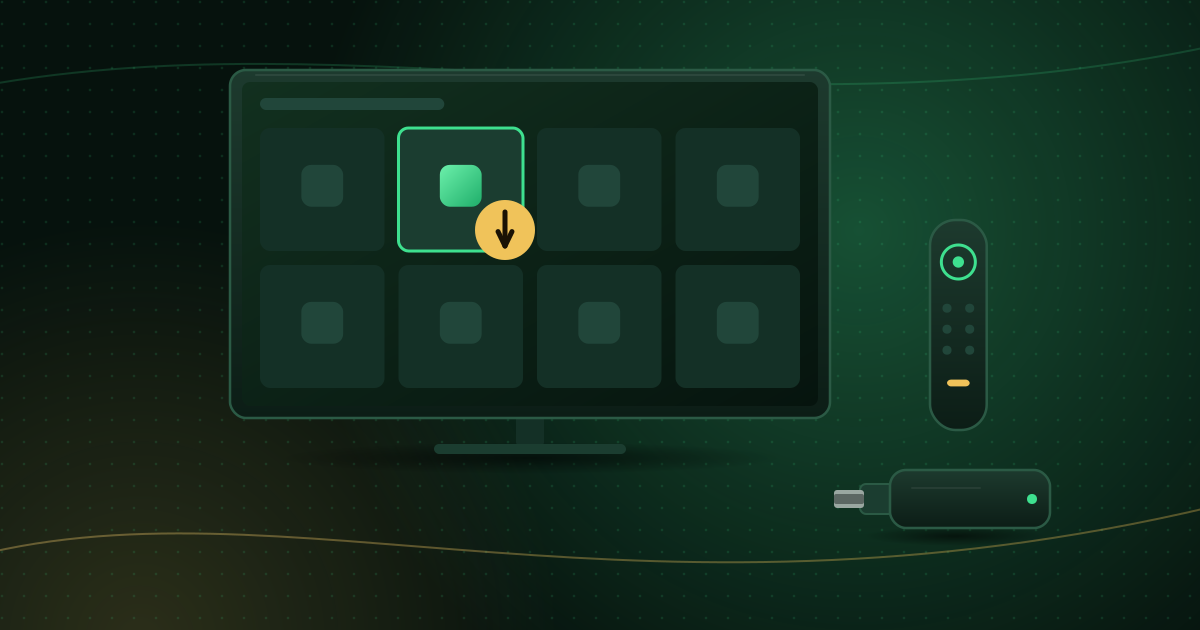
- Add a streaming device. A Fire TV Stick, Google TV device or Apple TV plugged into HDMI gives you a much larger app choice and newer software. Our comparison of Smart TV apps vs a streaming stick helps you decide.
- Avoid unofficial installation methods. Developer-mode installs on Tizen are intended for app developers and are not a safe way to load apps from unknown sources.
Performance tips for Samsung TVs
- Use Ethernet if the TV has a LAN port; it is more stable than Wi-Fi for live TV.
- Close apps you are not using; older TVs have little memory.
- Disable motion processing for sports if movement looks unnatural, using the TV’s own picture settings.
- Restart the TV properly: holding the power button until the TV restarts clears more than standby does on many models.
Troubleshooting checklist
| Problem | What to try |
|---|---|
| Playlist will not load | Check the URL and see M3U playlist not loading |
| Channels buffer | See how to stop buffering on live streams |
| App missing after update | Reinstall from Apps, then re-activate if the app uses a device ID |
| Guide shows wrong times | Set the time offset in the player’s EPG settings |
Summary
On a Samsung Smart TV, install a Tizen player from the Apps panel, confirm it supports your login type, and use the developer’s official website if the app uses device-ID activation. If the app selection on your TV is too limited, a streaming device is often the simplest upgrade. Check how your setup compares on our compatible devices page.
Sources and further reading
Menus and app availability change with software updates. If a step looks different on your device, check the device or app maker’s help page linked above.