Most TVs sold today are “smart”: they have apps built in. So why do so many people still plug in a streaming stick? The answer depends on your TV’s age, its operating system and the apps you need. This guide compares the two approaches so you can decide whether your TV’s apps are enough or a stick is worth adding.
How they differ
| Smart TV apps | Streaming stick or box | |
|---|---|---|
| Extra cost | None | A one-off device purchase |
| App store | Depends on the TV brand (for example Samsung Tizen, LG webOS, Google TV) | Depends on the device (Amazon Appstore, Google Play, App Store) |
| App choice for IPTV players | Often limited on Tizen and webOS | Usually wider |
| Software updates | Slow down or stop after a few years on many TVs | Continue as long as the device is supported; replacing a stick is cheap |
| Speed | Varies; older TVs are often slow | Newer devices are usually quicker |
| Cables and remotes | One remote, nothing extra | One more device on HDMI (most remotes can control TV power and volume) |
When your TV’s apps are enough
Stick with the built-in apps if:
- The player you want is available in your TV’s app store. Samsung and LG both say available apps vary by country, model and software version, so check your own TV rather than a friend’s.
- The TV is recent and menus feel fast.
- You are happy with the picture and do not see app crashes.
Our guides for Samsung Smart TVs and LG Smart TVs explain how to install and set up players on each platform.
When a streaming stick is worth it
A stick usually pays off when:
- The app you need is missing from your TV’s store.
- Your TV no longer gets updates, so apps stop working or cannot be installed.
- Menus and channel lists are slow on an older TV.
- You want features your TV lacks, such as a better remote, voice search or newer video formats.
- You have more than one TV and want the same interface on each.
Picking the right stick or box
The main options are Fire TV, Google TV/Android TV devices and Apple TV. When comparing them, focus on:
- App store: is your player available? This matters more than any other spec.
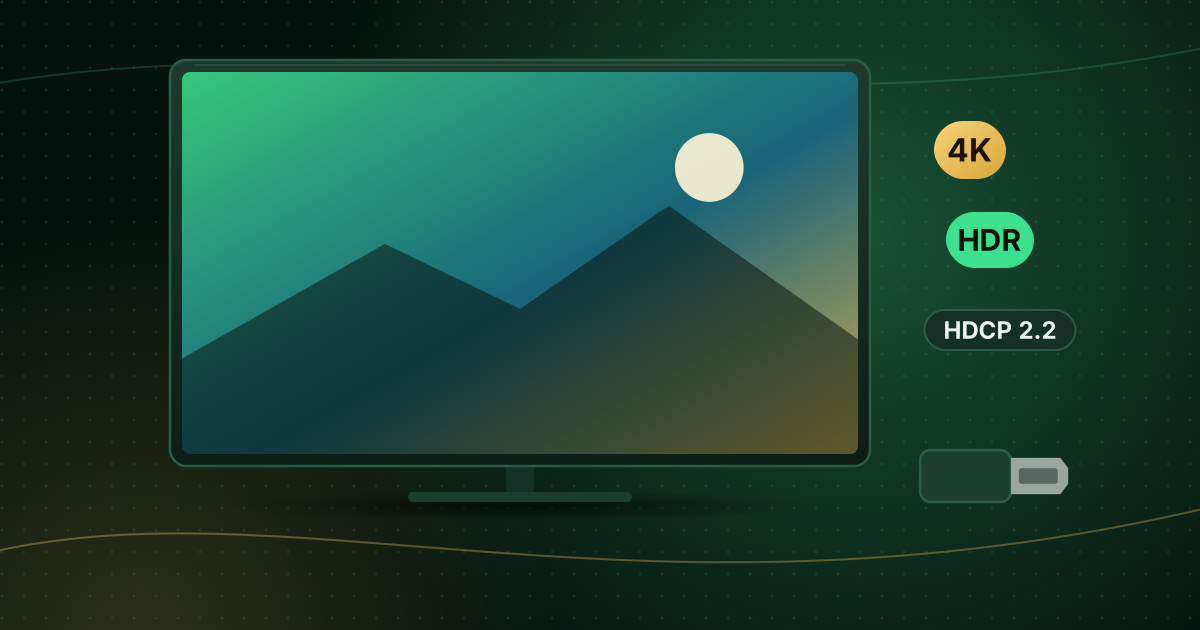
- 4K and HDR: only relevant if your TV supports them. See our 4K HDR requirements guide.
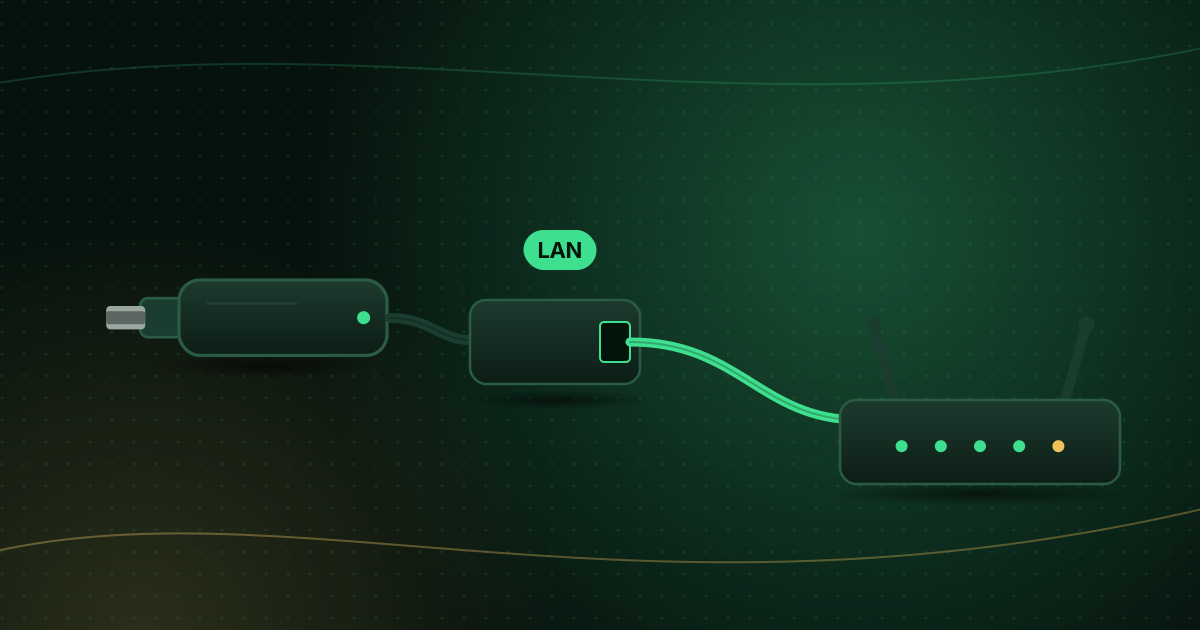
- Network: Ethernet or the option of an adapter for stable live TV.
- Storage: more is better if you use several apps.
If you are deciding between the two most common types, read Fire TV Stick vs Android TV box.
Setting up a stick on a smart TV
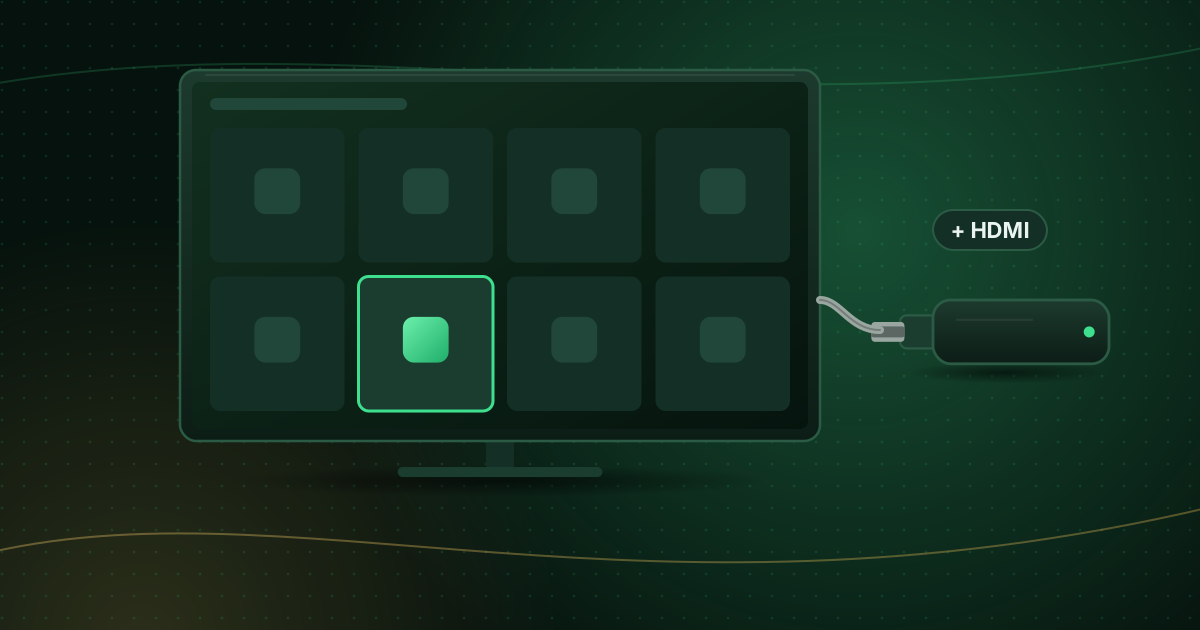
- Plug the stick into an HDMI port, ideally one marked for 4K/HDCP 2.2 if you want 4K.
- Power it from the wall adapter that came with it, not the TV’s USB port, which often supplies too little power.
- Select the right HDMI input on the TV.
- Turn on HDMI-CEC (Samsung calls it Anynet+, LG calls it SIMPLINK) so the stick’s remote can control TV power and volume.
If you get a black screen, follow our streaming stick “No Signal” fixes.
How to check what your TV runs
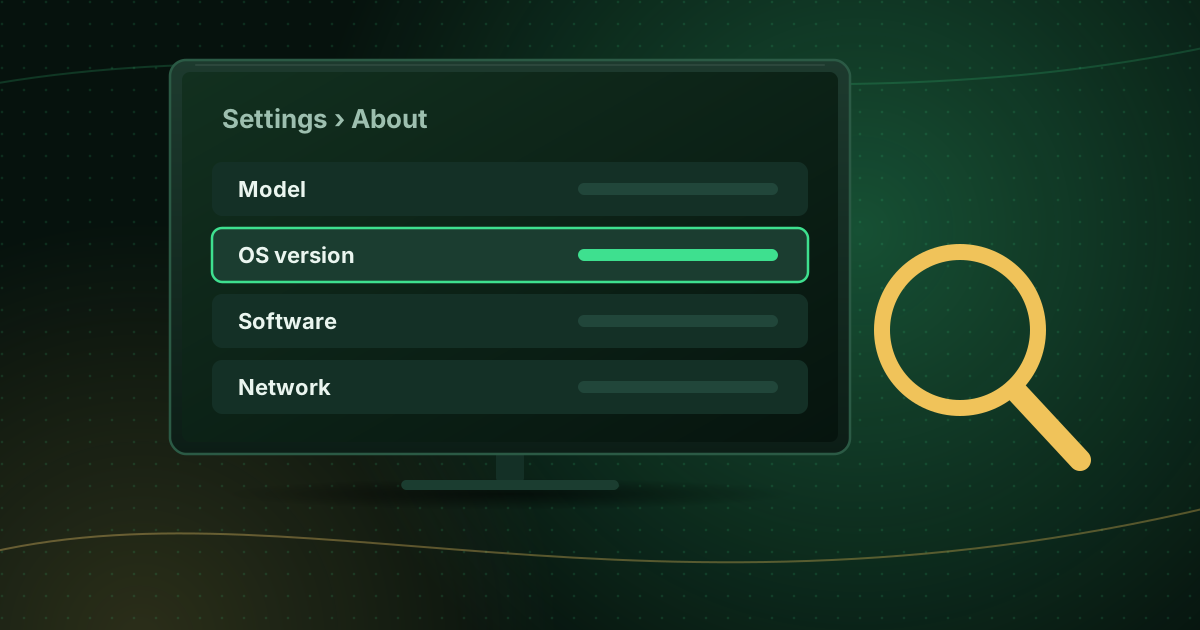
The decision often comes down to your TV’s operating system and whether it still gets updates. Our guide to finding your TV’s operating system shows where to find the version number on each brand.
Frequently asked questions
Why is my smart TV slow?
TVs have modest processors, limited memory and storage, and they run more background services after each update. Restart the TV fully, remove apps you do not use and install updates. If it is still slow, a streaming device usually feels much faster.
What happens when my TV stops getting app updates?
Apps can keep working for a while, but new versions may stop supporting older TV software, and some apps eventually stop working. A streaming stick restores current apps without replacing the TV.
Will a streaming stick improve picture quality?
It will not change the TV’s panel, but it can add support for newer video formats, codecs and HDR types the TV’s own apps lack, and it often plays streams more smoothly.
Summary
If your TV’s own store has the app you need and the TV feels fast, there is no need to buy anything. If apps are missing, slow or no longer updated, a streaming stick is an inexpensive upgrade that gives you a larger app store and fresh software. Compare devices on our compatible devices page.
Sources and further reading
- Samsung: Download and manage apps on your Samsung TV
- LG: How to use the LG Content Store on webOS TVs
Menus and app availability change with software updates. If a step looks different on your device, check the device or app maker’s help page linked above.