Android TV and Google TV are among the most flexible platforms for IPTV. They use the Google Play Store, which has a wide choice of player apps, and most devices support both Xtream Codes logins and M3U playlists with a full TV guide. This guide covers TVs from Sony, TCL, Hisense, Philips and others that run Google TV or Android TV, plus streaming devices such as the Google TV Streamer, Chromecast with Google TV and Nvidia Shield.
Android TV or Google TV: does it matter?
Google TV is Google’s newer interface on top of Android TV. The underlying system and app store are the same, so the setup steps are almost identical. The main differences are in menu names, for example Settings → Apps → See all apps on Google TV versus Settings → Apps on many Android TV models.
Not sure what your TV runs? Our guide to finding your TV’s operating system shows where to look.
Step 1: Update the system and Play Store
Before you install anything:
- Open Settings → System → About → System update (the exact path varies by manufacturer) and install pending updates.
- Open the Google Play Store once so it can update itself.
Updated firmware fixes many playback and app-store problems before they start.
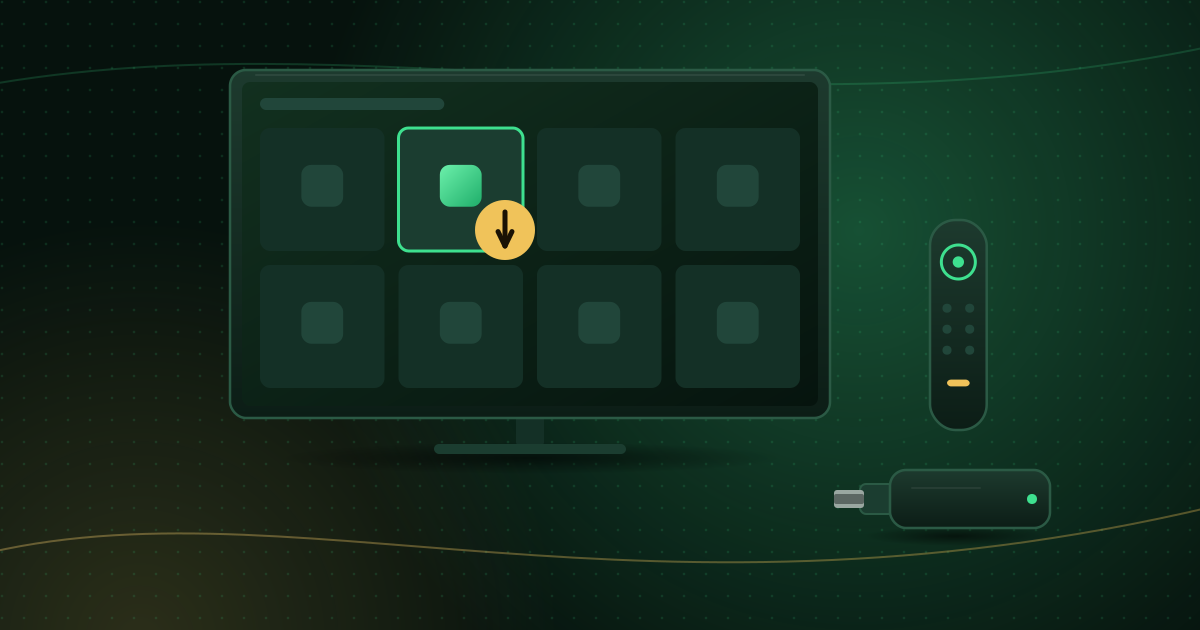
Step 2: Install a player app from Google Play
- Open the Google Play Store (on Google TV you can also search from the Search tab on the home screen).
- Search for “IPTV player” or the name of a specific player.
- Read the description and check that it supports your login type: Xtream Codes, M3U playlist, or both.
- Select Install.
Google’s help page on getting apps from Google Play describes the same process. Install from Google Play rather than from downloaded APK files: Play Protect scans Play apps, and they update automatically. See how to spot unsafe streaming apps for why this matters.
New to player apps? Start with what an IPTV player is and then compare features in our IPTV player compatibility guide.
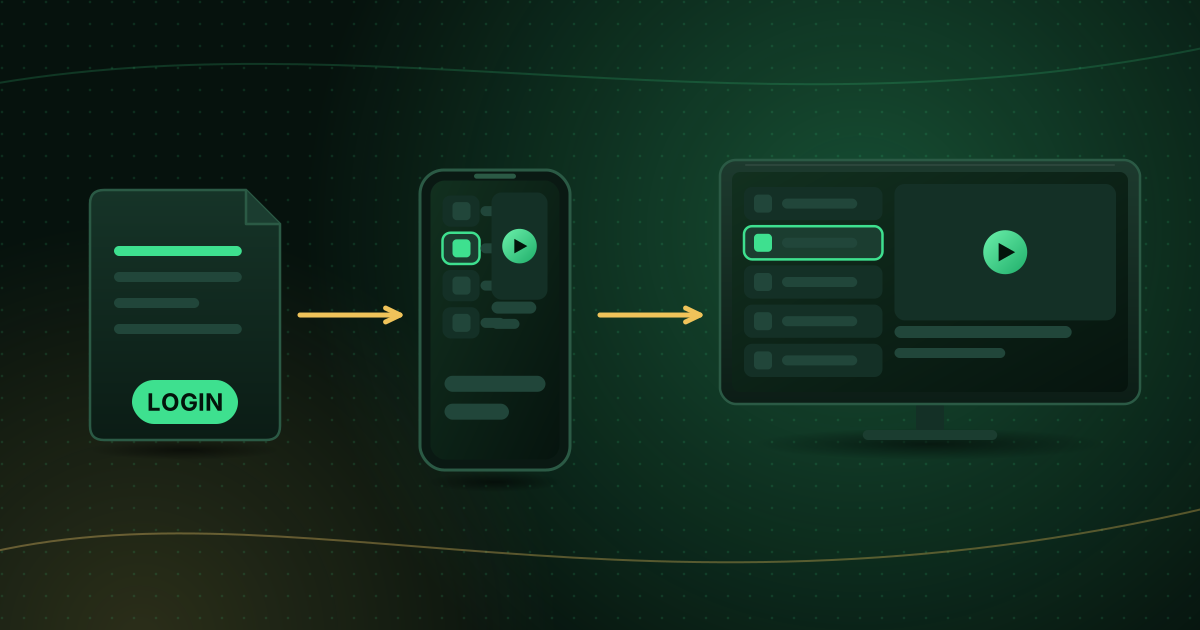
Step 3: Add your login
Open the player and look for Add playlist, Add user or Login.
Xtream Codes login
Enter the three details from your provider:
- Server URL, including
http://orhttps://and the port number if one is given (for example:8080). - Username
- Password
Both username and password are case-sensitive. An Xtream Codes login usually loads live channels, the video library and the TV guide automatically.
M3U playlist link
Paste the full M3U URL into the playlist field. Long URLs are hard to type with a remote; many players offer a way to send the link from a phone or computer, which avoids typing errors.
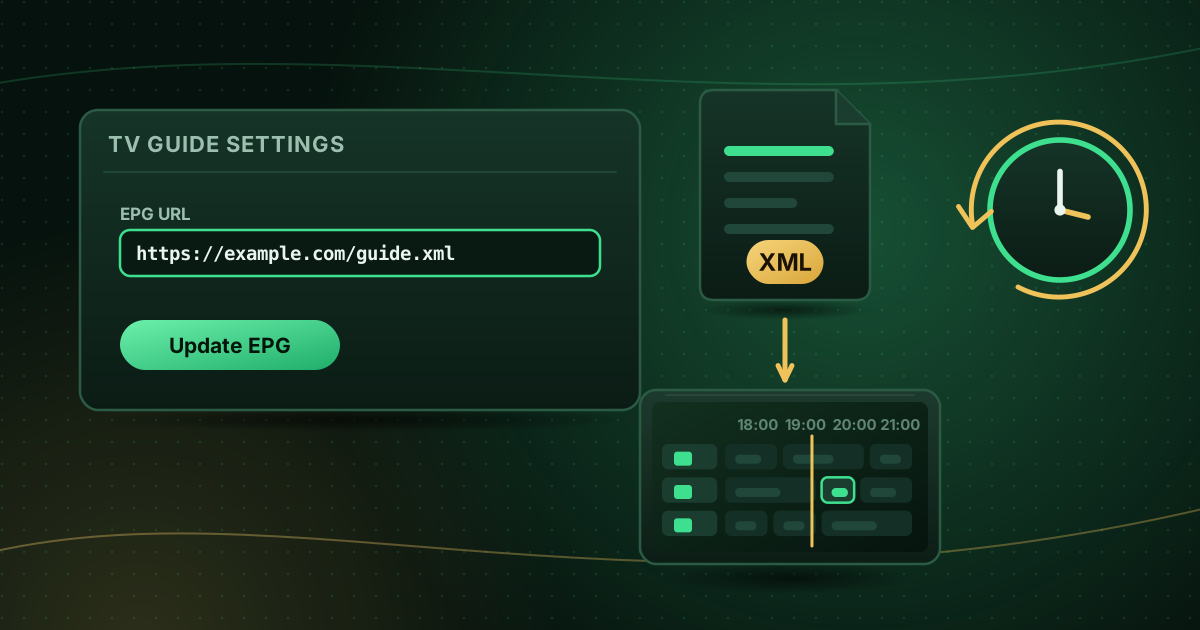
Step 4: Load the TV guide (EPG)
With Xtream Codes the guide usually loads by itself after a few minutes. With an M3U playlist you may need to add an EPG link in the player’s guide settings. Our guide to adding an EPG URL explains the XMLTV format and how channels are matched to guide data.
If times are shifted, set the time zone or guide offset in the player rather than changing the TV’s clock.
Step 5: Tune playback settings
A few settings make a noticeable difference on Android TV:
- Decoder: most players default to hardware decoding, which is efficient on TV chips. If a channel shows a black screen or stutters, try the software decoder for that channel. Hardware vs software decoding explains the trade-offs.
- Buffer size: a slightly larger buffer can smooth an unstable connection at the cost of a longer start time.
- Frame-rate matching: if your device offers “match content frame rate”, turning it on can make motion smoother on sports and films.
Keep your device running smoothly
Android TV devices, especially budget TVs, have limited memory and storage. To keep performance up:
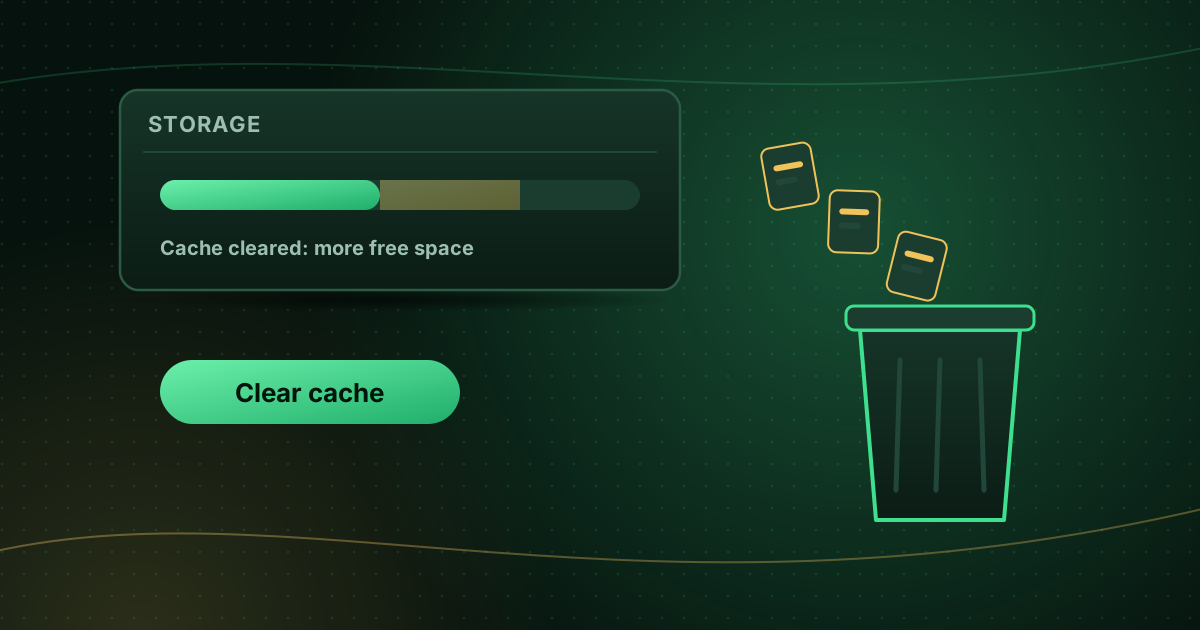
- Clear the player’s cache occasionally under Settings → Apps → [your app] → Clear cache. Sony’s support guidance for Google TV and Android TV recommends clearing the cache first and only clearing data if the problem continues. Our step-by-step cache guide covers both.
- Uninstall apps you do not use.
- Use Ethernet if your TV has a port. A cable is more stable than Wi-Fi for live streams; see Wi-Fi vs Ethernet for streaming.
Common Android TV problems and fixes
| Symptom | Likely cause | Fix |
|---|---|---|
| App not found in Play Store | Not offered for TV or your region | Choose another player listed for TV |
| “Invalid login” | Typo, missing port or expired account | Re-enter details carefully; see authorization failed errors |
| Guide empty | No EPG link or not refreshed yet | Add or refresh the EPG |
| Picture freezes, sound continues | Decoder issue | Switch decoder mode |
| Buffering in the evening | Network congestion | See how to stop buffering |
Summary
On Android TV and Google TV, the reliable path is simple: update the system, install a reputable player from Google Play, enter your Xtream Codes or M3U details, load the guide and adjust the decoder only if needed. Cobra IPTV customers can follow the same steps with the account-specific Cobra IPTV setup guide.
Sources and further reading
- Google Play Help: Get Android apps from the Google Play Store
- Sony Support: Clear the cache and data of an app on Google TV / Android TV
Menus and app availability change with software updates. If a step looks different on your device, check the device or app maker’s help page linked above.