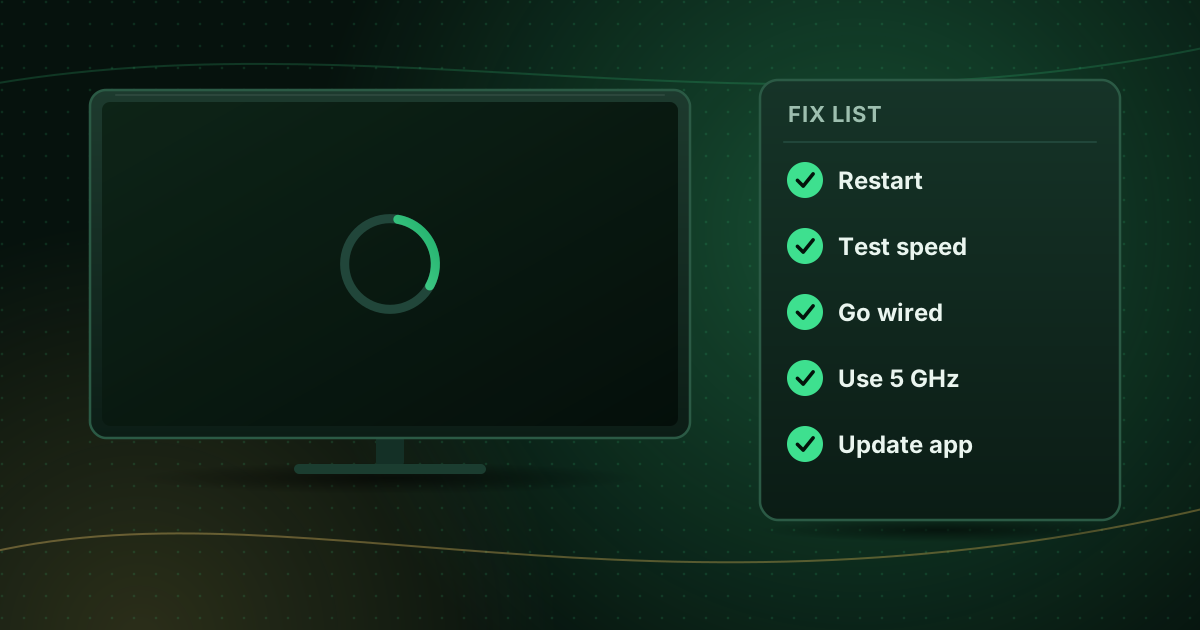
Buffering is the most common complaint with live TV streams, and also the most fixable. The trick is to work through the causes in the right order: quick resets first, then your home network, then the device and app. This guide gives 12 fixes in that order, with an explanation of why live channels buffer more than on-demand video.
Why live streams buffer more than on-demand video
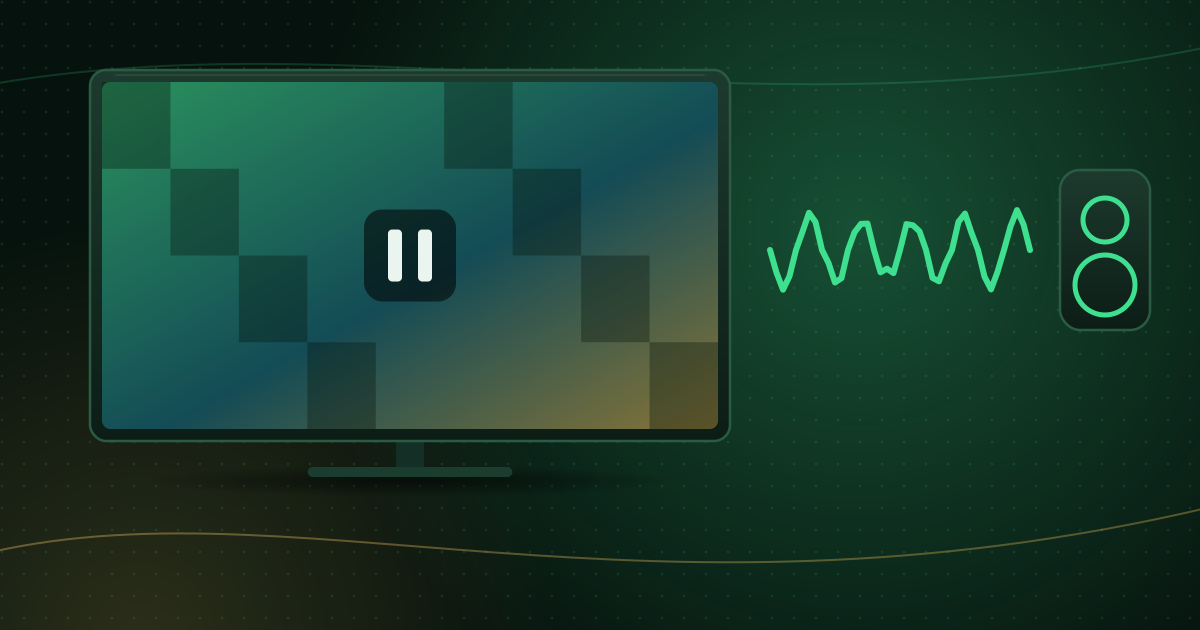
On-demand apps download well ahead of what you are watching, so short network hiccups go unnoticed. A live stream cannot get far ahead of the broadcast, so the player keeps only a few seconds in reserve. Any pause in the data, from a Wi-Fi dropout to a busy evening network, empties that reserve and the picture stops.
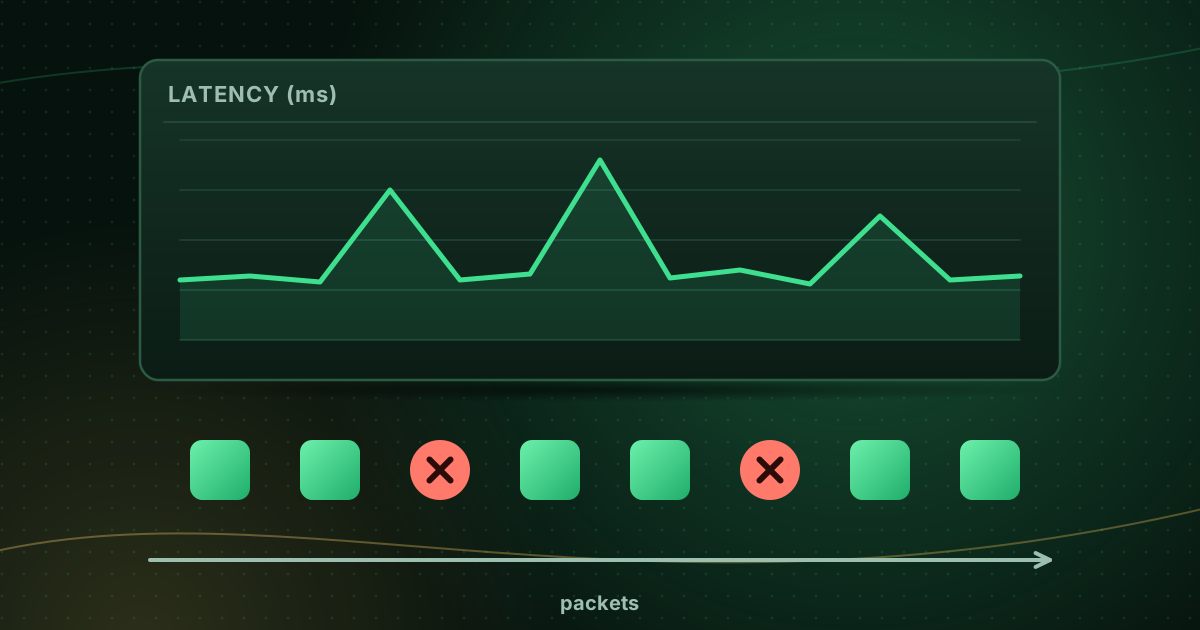
That is why steadiness matters as much as speed. If you have not already, read jitter, latency and packet loss to understand what a speed test does not show.
First: narrow down where the problem is
| Question | If yes… |
|---|---|
| Does every channel buffer? | Likely your network or device |
| Do only a few channels buffer? | Likely the source of those channels; report them to your provider |
| Does it only happen in the evening? | Network congestion (home or provider) |
| Does on-demand video in other apps also buffer? | Your connection or Wi-Fi |
| Does it happen on one device only? | That device or its Wi-Fi signal |
The 12 fixes, in order
1. Restart everything properly
Close the player app completely, unplug the streaming device and the router for 30 seconds, plug the router back in first, wait until it is fully online, then start the device.
2. Check your speed on the streaming device
Run a speed test on the TV or stick, not your phone, at the time you usually watch. Netflix recommends 5 Mbps for 1080p and 15 Mbps for 4K; the FCC’s guide suggests 5–8 Mbps for HD and 25 Mbps for 4K. Live streams need headroom above that, plus whatever else your household uses. See the internet speed guide.
3. Look at latency, jitter and packet loss
Use a test that reports them, such as Cloudflare’s speed test. High jitter or any packet loss points to Wi-Fi or router problems rather than your plan’s speed.
4. Move to a wired connection
An Ethernet cable is the single most effective fix for live-TV buffering. For sticks, use an adapter; see Ethernet adapters for Fire TV Stick.
5. If you must use Wi-Fi, use 5 GHz and a closer router
5 GHz is faster and less crowded than 2.4 GHz. Move the router into the open and closer to the TV, or add a mesh node. See 2.4 GHz vs 5 GHz.
6. Pause other heavy users
Game downloads, cloud backups, software updates and other 4K streams compete for the same connection. Schedule them overnight, or enable QoS on your router to prioritise the TV.
7. Test without a VPN
A VPN adds an extra hop and can route you through a distant or busy server. Try a nearer server or test without it. See VPN for streaming.
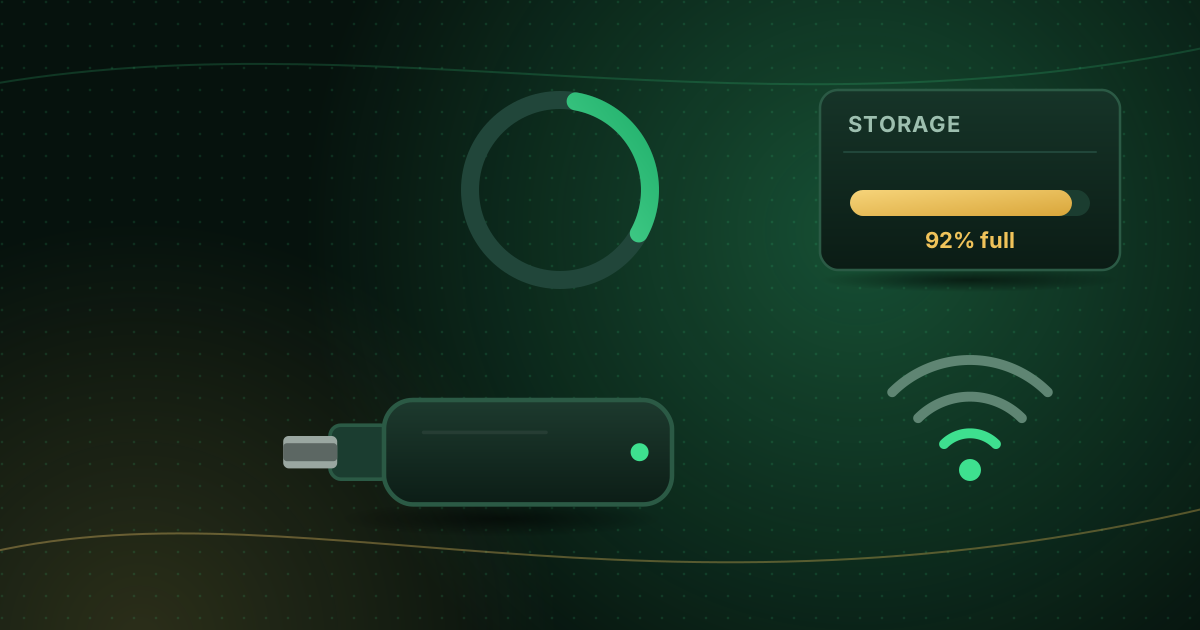
8. Free up the device
Low storage and too many background apps slow streaming sticks badly. Clear caches, uninstall unused apps and restart. Our guide to clearing cache on Fire TV and Android TV walks through it.
9. Update the player app and system software
Updates fix playback bugs and add codec support. Check both the app store and the device’s system update menu.
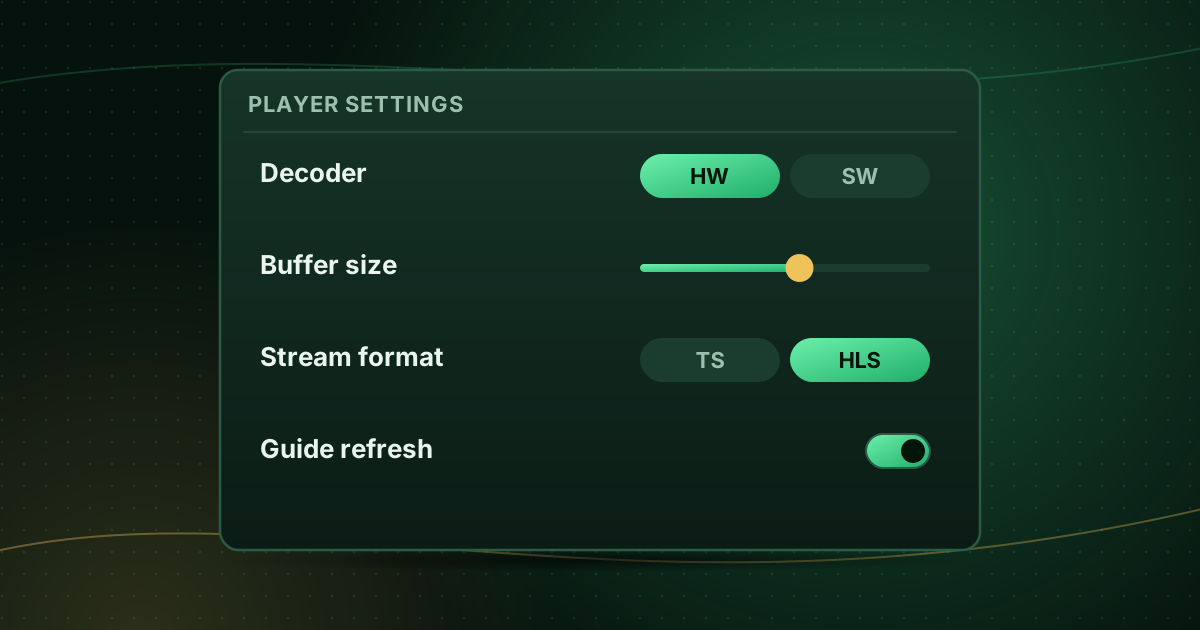
10. Adjust the player’s buffer and decoder
Increase the buffer size one step if you see short, frequent interruptions. If the picture freezes while audio continues, switch the decoder mode. See IPTV player settings explained.
11. Try another stream format or a lower quality
Some players can switch between HLS and MPEG-TS delivery, and some providers offer HD and SD versions of a channel. A lower-quality version that plays smoothly is better than a 4K one that keeps stopping.
12. Report the details
If the steps above do not help, contact your provider with: the device and app, which channels are affected, the times it happens, and your speed-test results on the device. Specific information gets a faster answer. Cobra IPTV customers can use the Cobra IPTV troubleshooting checklist and its reporting tips.
Buffering only in the evening?
Evenings are peak time for home internet. If buffering appears only then:
- Check whether your own household is busier at that time.
- Run tests at 8 pm and 10 am on a wired connection and compare.
- If wired results drop sharply in the evening, the congestion is outside your home; share the results with your internet provider.
Device-specific help
Summary
Restart, measure on the device, fix Wi-Fi (or go wired), clear the device’s storage and update the app, then fine-tune the player. If only certain channels buffer, the problem is likely at the source, so report them. Most live-TV buffering at home is solved by the first five steps.
Sources and further reading
- Netflix Help Center: Internet connection speed recommendations
- FCC: Broadband Speed Guide
- Cloudflare Blog: How does Cloudflare’s Speed Test really work?
Menus, apps and settings change with software updates. If something looks different on your device, check the official help pages from your device maker or app developer.