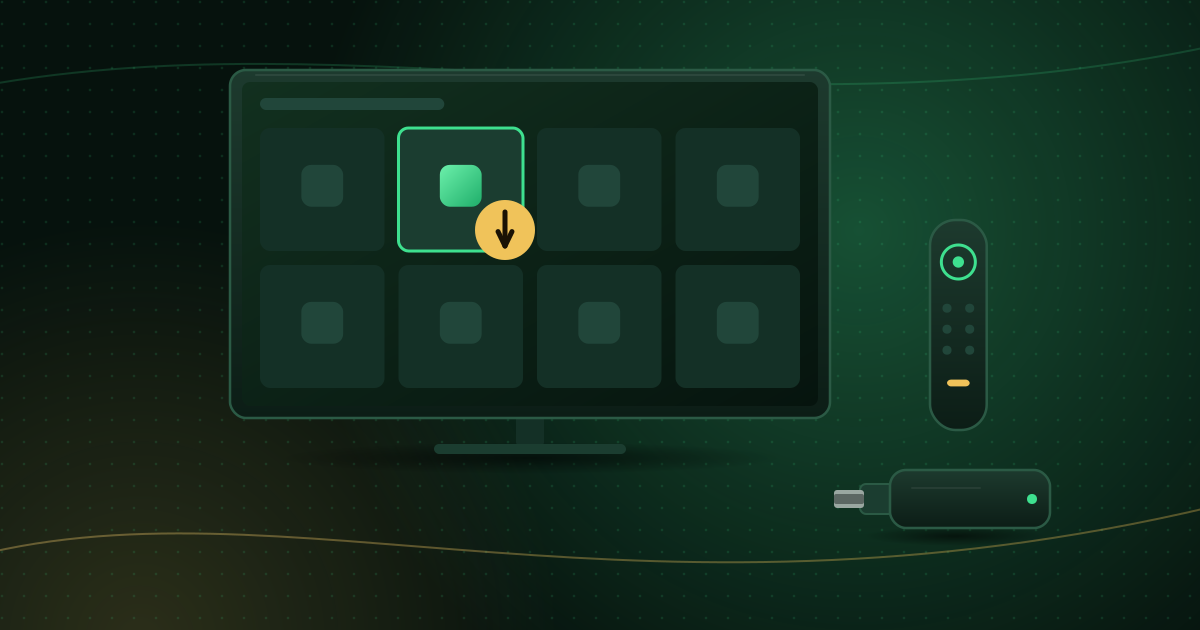
Amazon Fire TV devices run Fire OS and get their apps from the Amazon Appstore. Installing from the Appstore is quick, keeps the app updated automatically and protects you from most of the malware that circulates in “modded” app files. This guide shows the full process on a Fire TV Stick, how to update and remove apps, and why installing apps from random websites is a bad trade.
What you need before you start
- A Fire TV Stick, Fire TV Cube or Fire TV edition smart TV that is set up and connected to the internet.
- An Amazon account signed in on the device. Apps are tied to your account, so the same purchases appear on every Fire TV you own.
- Enough free storage. Lower-cost sticks have limited space, and large apps can fail to install when storage is nearly full. If you see storage warnings, follow our guide to clearing cache and freeing storage on Fire TV first.
How to install an app from the Amazon Appstore
- Press the Home button on the remote.
- Go to Find (the magnifying glass) and select Search, or hold the microphone button and say the app’s name if your remote supports Alexa.
- Type the app name with the on-screen keyboard and choose it from the suggestions.
- Open the app’s page and select Get or Download. Paid apps show a price instead.
- Wait for the download and installation to finish, then select Open.
The app now appears under Your Apps & Channels. To pin it to the home row, highlight it, press the Menu button (three lines) and choose Move to place it where you want.
If the app does not appear in search
- Check the spelling and try a shorter search term.
- Regional availability: the Appstore catalogue differs between countries. An app listed for US customers may not be available in the UK, Canada or Australia.
- Device compatibility: some apps only support newer Fire TV models.
- Account country: your Amazon account’s country decides which store you see. Changing it affects other Amazon services, so only do this if it genuinely matches where you live.
If a player app you were told about is not in your store, choose a different player that is. Our guide to IPTV player compatibility explains what to look for.
How to update apps on Fire TV
Fire TV updates Appstore apps automatically by default. To check:
- Open Settings → Applications → Appstore.
- Make sure Automatic Updates is on.
Keeping apps updated matters for streaming: updates often add support for new video formats and fix playback bugs. If an app misbehaves after a long break, open its Appstore page; an Update button means a newer version is waiting.
How to remove apps you no longer use
Uninstalling unused apps frees storage and memory, which helps smaller sticks run smoothly.
- Open Settings → Applications → Manage Installed Applications.
- Select the app.
- Choose Uninstall and confirm.
On the same screen you can also Clear cache and Clear data for an app. Amazon’s help page explains both options; clearing data resets the app completely, so you will need to sign in again.
Why you should avoid sideloading unknown apps
Fire TV lets you install apps from outside the Appstore after enabling an “unknown sources” option for a downloader app. That freedom comes with real risk:
- No store review. Files from websites and forums are not checked before you install them. Google has noted that attackers often distribute malicious Android apps directly to avoid store scanning, and Fire OS is built on Android.
- Broad permissions. A modified app can request access it does not need and run in the background.
- No automatic updates. Sideloaded apps keep their security holes until you replace them manually.
- Legal exposure. “Fully loaded” apps that unlock paid channels or films for free are a common route to unlicensed content. Our article on whether IPTV is legal explains the difference between legitimate and illicit services.
If you have already sideloaded apps, review them under Manage Installed Applications and remove anything you do not recognise. Then switch the unknown-sources permission off again under Settings → My Fire TV → Developer options (menu names vary by Fire OS version). For more warning signs, read how to spot unsafe streaming apps.
Choosing a player app for live TV
If you want to watch an IPTV service on Fire TV, you need a player app that supports the login type your provider gives you, usually an Xtream Codes login or an M3U playlist link. When comparing options in the Appstore, check that:
- The description mentions your login type explicitly.
- It offers a TV guide (EPG) if you want one.
- It was updated recently and has a clear privacy policy.
- The free version works before you pay for any upgrade.
Then enter your details as your provider describes. If you are a Cobra IPTV customer, the Cobra IPTV setup guide walks through each field.
Quick fixes when an app will not install
| Problem | What to try |
|---|---|
| Download stalls | Restart the stick (unplug it for 30 seconds), then retry. |
| “Not enough storage” | Uninstall unused apps and clear caches. |
| App installs but will not open | Clear its cache, then restart the device. |
| App crashes on start | Check for an update, or uninstall and reinstall from the Appstore. |
| Buffering inside the app | See Fire TV Stick buffering fixes. |
Summary
Install streaming apps from the Amazon Appstore, keep automatic updates on and remove what you do not use. That combination gives you the most stable Fire TV and avoids the malware and legal risks that come with unknown app files. Once your player is installed, check that your Fire TV model suits your service on the compatible devices page.
Sources and further reading
- Amazon: How to clear app data and cache on Fire TV
- Google Security Blog: Google Play Protect in 2018
Menus and app availability change with software updates. If a step looks different on your device, check the device or app maker’s help page linked above.