Which apps you can install depends on your TV’s operating system, not its brand or size. A Sony TV, a TCL TV and a Philips TV may all run Google TV, while two Samsung TVs from different years may run very different versions of Tizen. Knowing your system and version saves you from downloading guides and apps that do not apply. Here is how to find it.
The main TV operating systems
| Operating system | Found on | App store |
|---|---|---|
| Tizen | Samsung Smart TVs | Samsung Apps (Smart Hub) |
| webOS | LG Smart TVs (and some other brands under licence) | LG Content Store |
| Google TV / Android TV | Sony, TCL, Hisense, Philips and others; Google TV Streamer, Chromecast with Google TV, Nvidia Shield | Google Play Store |
| Fire OS | Fire TV Sticks, Fire TV Cube, Fire TV edition TVs | Amazon Appstore |
| Roku OS | Roku devices and Roku TVs | Roku Channel Store |
| tvOS | Apple TV | App Store |
| VIDAA | Some Hisense models | VIDAA app store |
Fast clues on the home screen
- A “For you” / Google TV home with Google Play in the apps row → Google TV.
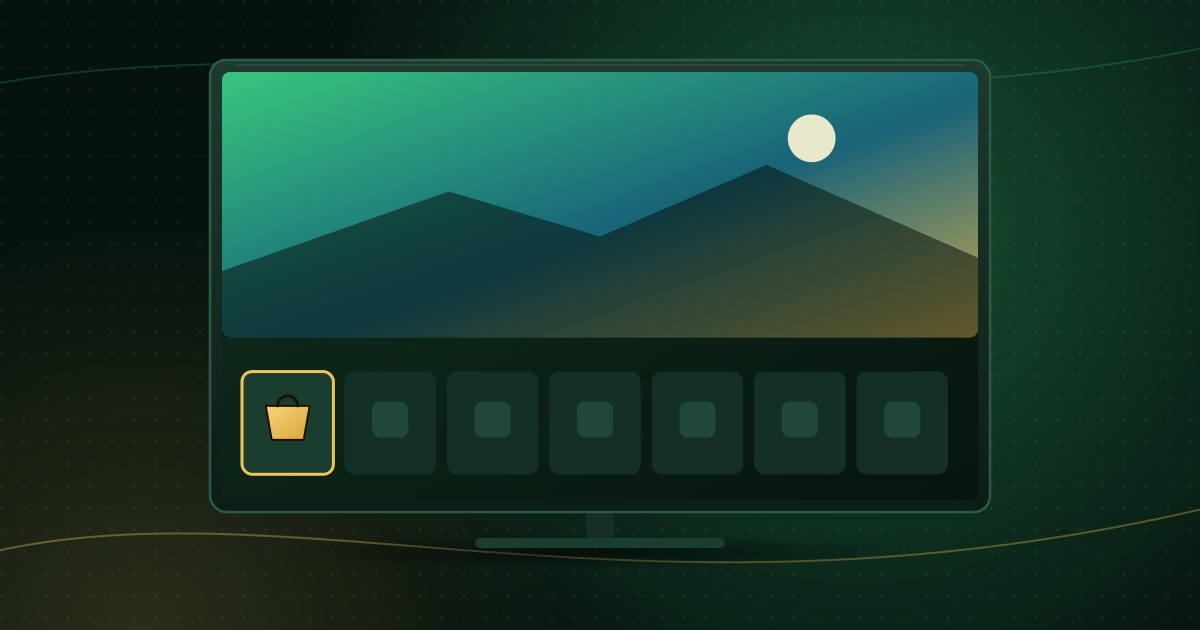
- A bar of app tiles along the bottom with a shopping-bag Content Store icon → LG webOS.
- An Apps panel and Samsung account sign-in → Samsung Tizen.
- An Amazon home with Find and Your Apps & Channels → Fire OS.
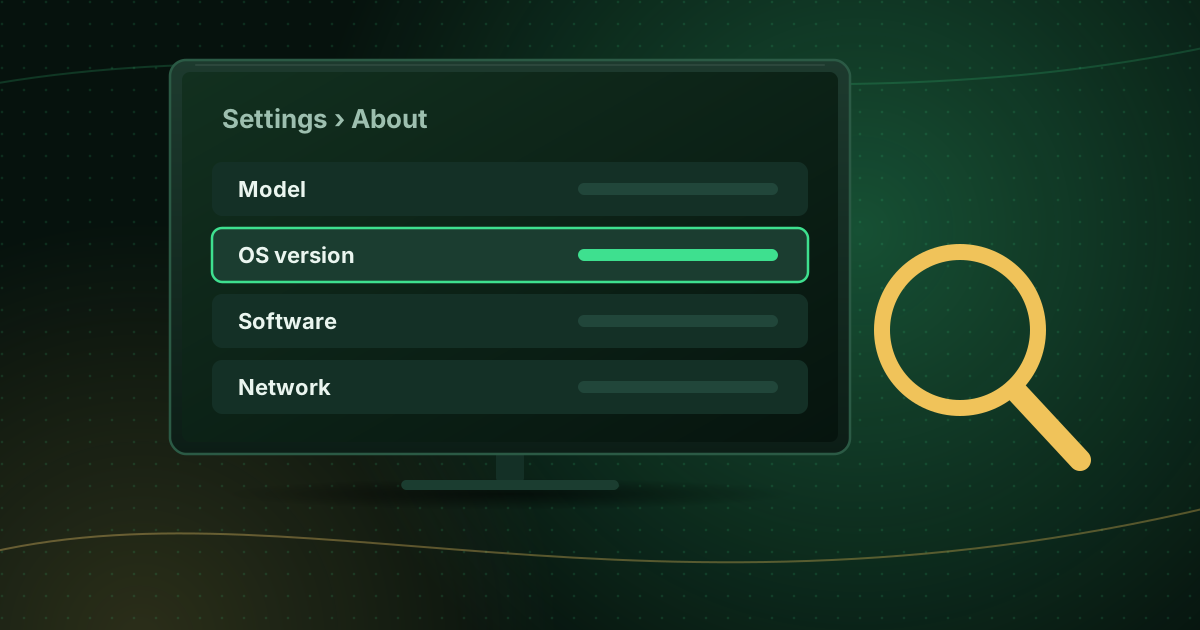
Where to find the exact version
Menu names change between model years; these are the usual locations.
Samsung (Tizen)
Settings → Support → About This TV shows the model code and software version. Settings → Support → Software Update checks for updates. Samsung notes that supported apps vary by country, model and software version, so the model code matters.
LG (webOS)
Open Settings → All Settings → General → About This TV (or Support → TV Information on some years). The webOS version and software version are listed there.
Google TV and Android TV
Settings → System → About shows the Android TV OS version and model. On older Android TV models, look under Settings → Device Preferences → About.
Fire TV
Settings → My Fire TV → About shows the device name and Fire OS version.
Apple TV
Settings → General → About shows the model and tvOS version. Apple notes that the App Store is not available on the third-generation Apple TV.
Why the version matters
- App availability: a player may require a minimum system version or may simply not exist on your platform.
- Video support: newer versions add codecs and HDR formats.
- Security: older TVs that no longer get updates can stop running current apps.
- Instructions: menus and settings move between versions, so you know which steps to follow.
What to do next
Once you know your system, jump to the setup guide that matches:
- IPTV on Samsung Smart TV (Tizen)
- IPTV on LG Smart TV (webOS)
- IPTV on Android TV and Google TV
- Install apps on a Fire TV Stick
- IPTV on Apple TV
If your TV is old, no longer updated or missing the app you need, a streaming device is usually the simplest fix; compare the options in Smart TV apps vs a streaming stick.
Frequently asked questions
How can I tell if my TV is a Google TV?
A Google TV home screen has a “For you” tab and recommendations from many apps in one place, and the Google Play Store is available. In Settings → System → About, Google TV and Android TV models list an “Android TV OS” version. The box, manual or manufacturer’s product page will also say “Google TV”.
Where do I find my TV’s model number?
It is printed on a label on the back of the TV and shown in the TV’s About or Support menu. Note it down: manufacturers’ help pages, app compatibility lists and warranty support all ask for it.
Can I change my TV’s operating system?
No. The operating system is part of the TV and is chosen by the manufacturer. If you want a different app store or newer software, add a streaming device instead.
Summary
Look at the home screen for quick clues, then confirm the exact system and version in the TV’s About menu. That one check tells you which app store you have, which guides apply and whether it is time to add a streaming device. Our compatible devices page summarises how each platform works with IPTV player apps.
Sources and further reading
- Samsung: Download and manage apps on your Samsung TV
- LG: How to use the LG Content Store on webOS TVs
- Apple Support: Download apps on your Apple TV 4K and Apple TV HD
Menus and app availability change with software updates. If a step looks different on your device, check the device or app maker’s help page linked above.