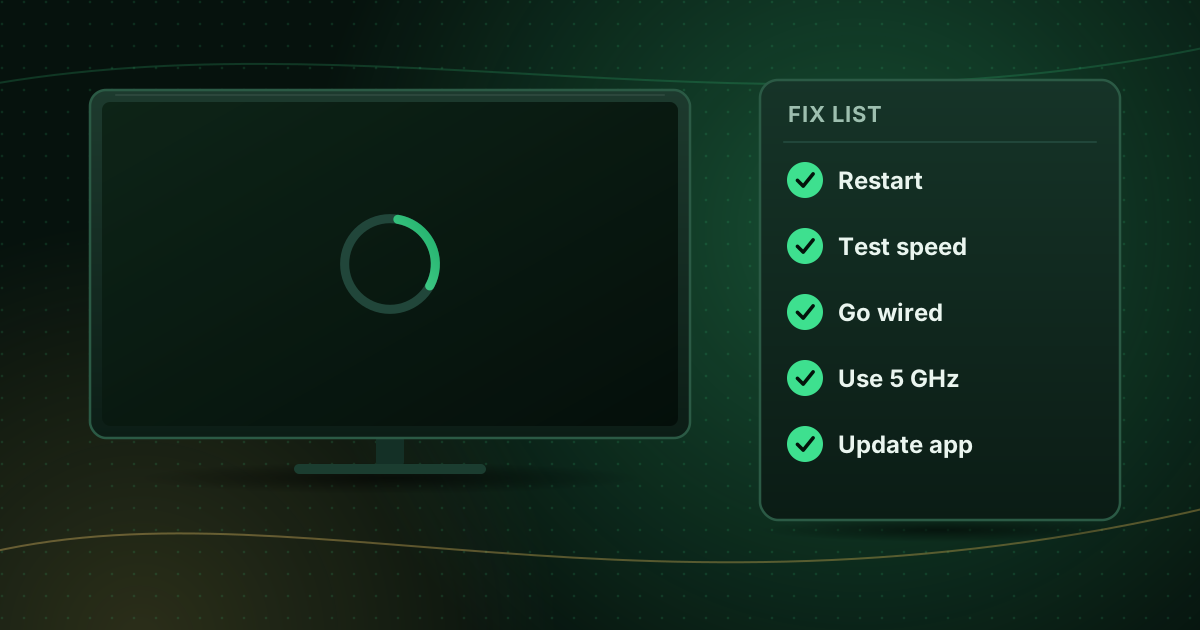
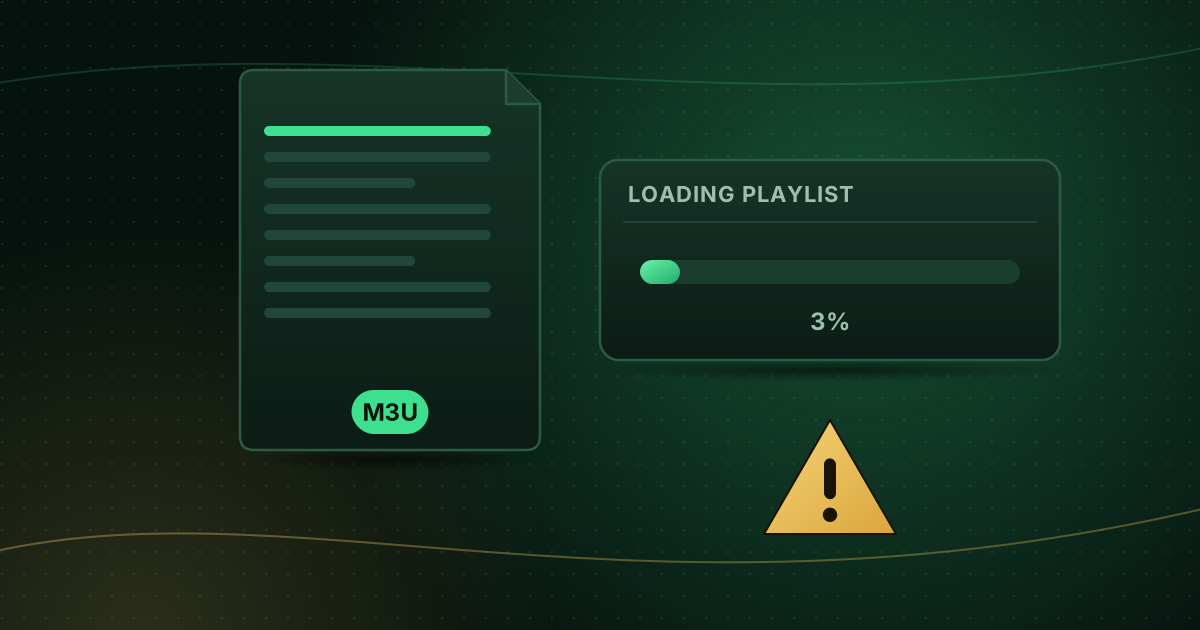
An M3U playlist that will not load, loads empty or stays stuck on “Loading…” is frustrating, but the cause is usually simple. Because an M3U playlist is just a text file at a web address, the problem lies in one of three places: the link, the file or the player. Here are ten things to check, in order.
1. Is the URL complete?
Long playlist URLs often get cut off or altered:
- Make sure you copied the entire link, including everything after any
?or&characters. - Check that no spaces or line breaks crept in when pasting.
- On a TV remote, double-check look-alike characters (
0/O,l/1).
Paste the link from your welcome email or account page rather than typing it.
2. Does the link work outside the player?
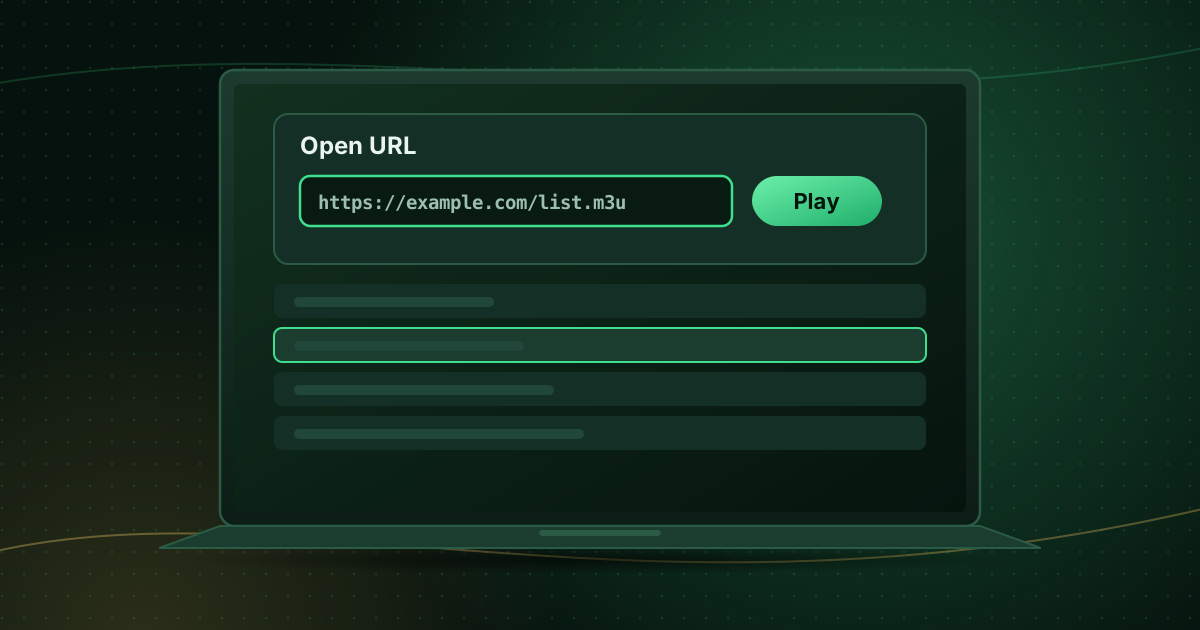
Open the URL in a web browser on a computer. Depending on the server, it will either download a file or show text starting with #EXTM3U.
- You get a file or text: the link works; the problem is in the player or device.
- You get an error page: note the code. A 401 or 403 suggests a login or permission problem, a 404 that the address is wrong, and a 503 that the server is temporarily unavailable (as described in MDN’s HTTP status reference). See streaming error codes explained.
You can also test with VLC; see opening an M3U playlist in VLC.
3. Is the account active?
Playlist links usually include your login. If the subscription has expired or the account is suspended, the link returns an error or an empty list. Check the account status with your provider.
4. Too many connections?
Some servers refuse to serve the playlist when your connection limit is already reached. Close the player on other devices and try again. Simultaneous streams explained has more.
5. Is the playlist simply very large?
Playlists with thousands of entries and a full video library can take minutes to process on a streaming stick.
- Leave the player open during the first load; do not exit and restart it.
- If your provider offers a smaller playlist (for example live TV only), try it.
- Free up storage and memory on the device first.
6. Is the format right?
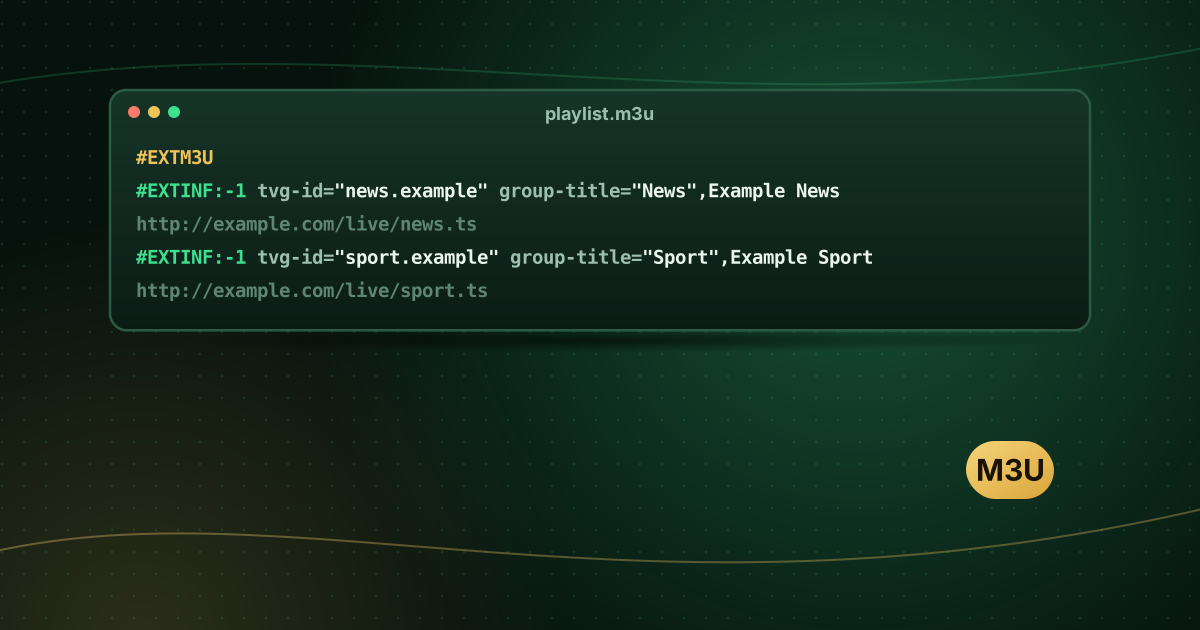
The first line of an extended M3U playlist must be #EXTM3U, followed by #EXTINF lines and stream addresses. If you edited the file yourself:
- Check that
#EXTM3Uis still the very first line. - Keep each
#EXTINFline directly above its address. - Save as UTF-8 to avoid problems with accented names.
Our guide to what an M3U playlist is shows the correct structure.
7. Is the player expecting a different type?
- Some players need you to choose M3U URL rather than Xtream Codes when adding a source, and vice versa.
- Some players distinguish M3U and M3U Plus (a variant with extra tags); if one option fails, try the other.
- A single
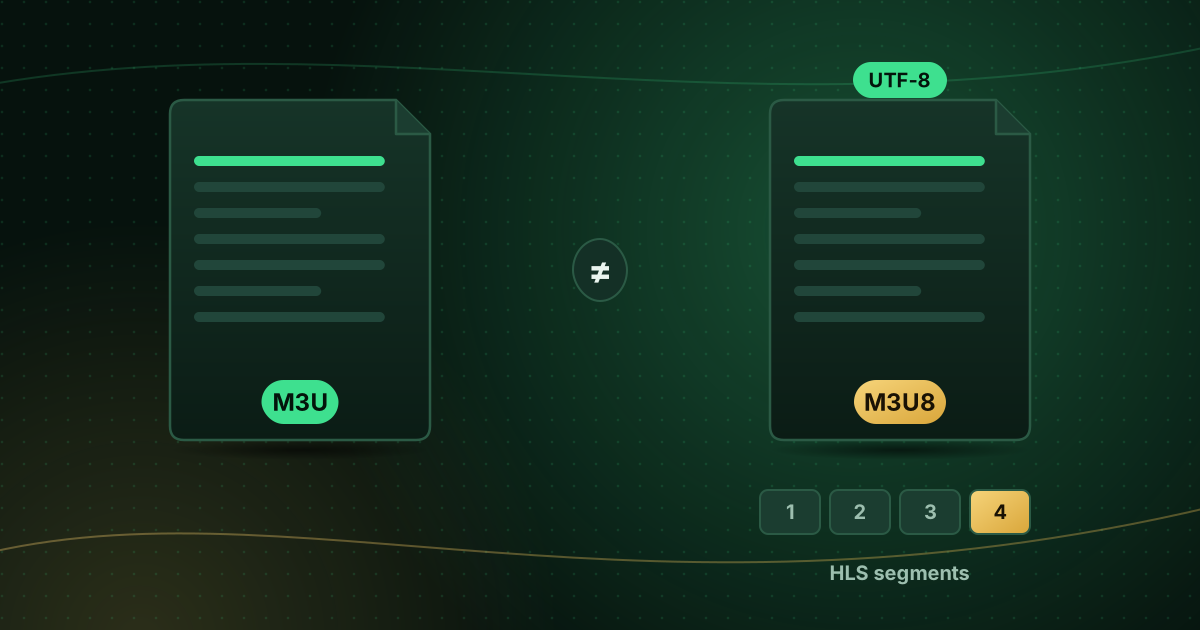
.m3u8link may be an HLS stream for one channel rather than a channel list; see M3U vs M3U8.
8. Is the network blocking it?
Mobile networks, workplace Wi-Fi and some public networks block uncommon ports. Try another network. If you use a VPN, test with it off.
9. Is the device’s clock correct?
Secure (https://) connections fail if the device’s date and time are far off. Set them to automatic.
10. Clear the player’s cache and start again
- Remove the playlist from the player.
- Clear the app’s cache (and data if needed).
- Restart the device.
- Add the playlist again.
On Fire TV and Android TV, follow our cache guide.
Loaded, but some channels do not play?
That is a different problem: the playlist is fine, but individual streams are offline or use a format your device struggles with. Try switching the decoder or stream format in the player, and report the specific channels to your provider. The Cobra IPTV troubleshooting checklist covers black screens and missing sound.
Frequently asked questions
The M3U URL works in my browser but not in the app. Why?
The link itself is fine, so the problem is in the player or device: the playlist type may be set wrongly (M3U vs Xtream Codes), the file may be too large for the device to process quickly, the device’s clock may be wrong, or the app’s cached data may be stale. Clear the app’s cache and add the playlist again.
The playlist is stuck loading at 0%. What should I try?
Check the device’s internet connection with another app, confirm the URL is complete, and leave the player open for a few minutes on a large playlist. If it stays at 0%, test the link in VLC on another device to see whether the server is responding.
Can a playlist stop working without anything changing on my side?
Yes. Expired subscriptions, password changes, server moves and connection limits all break a link that worked before. Check the account status with your provider.
Summary
Confirm the full URL, test it in a browser or VLC, check the account and connection limit, give large playlists time, and make sure the player is set to the right playlist type. If the link works elsewhere, clear the player’s cache and add the playlist again.
Sources and further reading
Menus and app availability change with software updates. If a step looks different on your device, check the device or app maker’s help page linked above.