Apple TV is a fast, well-supported device for IPTV, as long as you choose a player from the tvOS App Store and set it up correctly. This guide covers Apple TV 4K and Apple TV HD: which models can install apps, how to download a player, how to add your login and which video settings give the best picture.
Which Apple TV models can run IPTV players?
Apple’s support pages describe downloading apps on Apple TV 4K and Apple TV HD. The App Store is not available on the third-generation Apple TV, so that older model cannot install new apps. If you are unsure which model you have, check Settings → General → About on the device.
For 4K or HDR channels you also need a 4K TV and the right HDMI setup; see our 4K HDR streaming requirements.
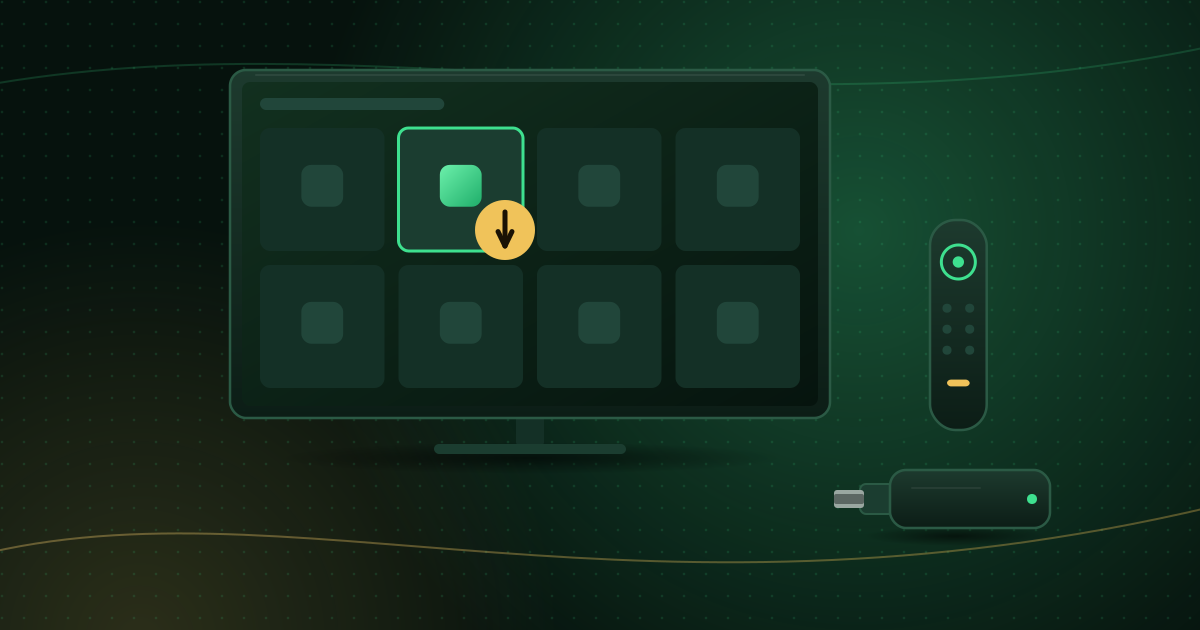
Step 1: Download a player from the App Store
According to Apple:
- Open the App Store on Apple TV.
- Find the app and select Get (free) or the price (paid).
- Press the clickpad centre (or touch surface on older Siri Remotes) to download.
While the app downloads, its icon shows a progress indicator on the Home Screen. If you see Install with an iCloud icon, you already own the app and can download it again for free.
To control updates, go to Settings → Apps and turn Automatically Update Apps on.
Choosing a tvOS player
Look for an app that clearly lists:
- Xtream Codes and/or M3U playlist support.
- A TV guide (EPG).
- iPhone or iPad companion entry, which saves typing long details with the remote.
- Transparent pricing. Many tvOS players are free to try with an optional upgrade; free vs paid players explains what upgrades typically add.
Step 2: Add your login
Open the player and choose Add playlist or Add account.
- Xtream Codes: server URL (with
http://orhttps://and any port), username and password. - M3U: the complete playlist URL.
The Siri Remote’s on-screen keyboard is slow for long URLs. If the player offers it, use your iPhone: on many apps a keyboard prompt appears on the phone automatically when it is near the Apple TV and signed in to the same Apple Account. Otherwise use the player’s own companion feature.
Cobra IPTV customers can follow the field-by-field instructions in the Cobra IPTV setup guide.
Step 3: Turn on the guide and favourites
After the channel list loads, open the player’s guide settings. With Xtream Codes, guide data usually loads automatically; with M3U you may need to add an EPG link. Mark the channels you watch most as favourites so they appear first.
Step 4: Set video options for the best picture
Apple TV has two settings that matter most for live TV:
- Match Content: under Settings → Video and Audio → Match Content, turn on Match Dynamic Range and Match Frame Rate. This lets the Apple TV switch to the stream’s frame rate and dynamic range instead of converting everything, which helps sports and films look natural.
- Format: set the output format to what your TV supports (for example 4K SDR with Match Dynamic Range on), rather than forcing HDR for all content.
Inside the player, leave the decoder on its default unless a specific channel misbehaves. Our explainer on player settings covers buffer size and other options.
Watching on iPhone and sending to Apple TV
If you also watch on an iPhone or iPad, AirPlay lets you send a stream from the phone to the Apple TV. A native tvOS app is usually smoother and keeps your phone free, but AirPlay is handy for a one-off. See how to watch IPTV on iPhone and iPad.
Fixing common problems
| Problem | What to try |
|---|---|
| App store not available | You have a 3rd-generation Apple TV; it cannot install new apps |
| Login fails | Check typing, server URL and port; see authorization failed errors |
| Picture flickers when changing channels | Normal with Match Content: the TV is switching mode |
| Buffering | Prefer Ethernet (Apple TV 4K models with a LAN port) and see how to stop buffering |
| App crashes | Update the app; if it continues, delete and reinstall it |
Frequently asked questions
Can I use IPTV on an Apple TV 3rd generation?
Not with new apps. Apple notes that the App Store is not available on the third-generation Apple TV. You could use AirPlay from an iPhone or iPad, or upgrade to Apple TV HD or Apple TV 4K.
Is Apple TV good for 4K IPTV?
Apple TV 4K supports 4K, HDR and efficient codecs, and handles high-bitrate streams comfortably. You also need a 4K TV, a suitable HDMI connection and enough bandwidth.
Does Apple TV need an Ethernet connection?
No, but some Apple TV 4K models include an Ethernet port, and using it is the most reliable option for live TV.
Summary
Apple TV 4K and Apple TV HD make excellent IPTV players: install a reputable app from the tvOS App Store, enter your login (ideally using your iPhone for typing), load the guide and turn on Match Content. If you are still choosing hardware, our compatible devices page compares Apple TV with other options.
Sources and further reading
Menus and app availability change with software updates. If a step looks different on your device, check the device or app maker’s help page linked above.