An iPhone or iPad is a convenient second screen for live TV: you can watch in the kitchen, on the train or in bed, then send the picture to a television when you want a bigger view. This guide explains how to choose a player from the App Store, add your login, keep mobile data under control and use AirPlay.
Step 1: Get a player from the App Store
Apple’s iPhone User Guide describes the usual process: open the App Store, search for the app, then tap Get (or the price) and confirm with Face ID, Touch ID or your passcode.
When comparing IPTV players, check the listing for:
- Login types: Xtream Codes, M3U playlist or both.
- TV guide (EPG) and favourites.
- Picture-in-Picture, so you can keep watching while using other apps.
- AirPlay support, for sending video to a TV.
- A clear privacy label showing what data the app collects.
- iPad layout: some apps are iPhone-only and run in a small window on iPad.
Players are separate from TV services: an app does not include channels by itself. If that distinction is new to you, read what an IPTV player is.
Step 2: Add your login
Open the player and choose Add playlist or Add user.
- Xtream Codes: server URL exactly as provided (with
http://orhttps://and the port if there is one), then username and password. - M3U: paste the full playlist link. Copying it from your welcome email and pasting it avoids typing errors.
Give the profile a name you will recognise and save it. The first load can take a minute for large playlists.
Step 3: Set up the guide and favourites
If the player does not load guide data automatically, add the EPG link your provider supplied in the player’s guide settings. Then mark your most-watched channels as favourites so you do not scroll through the whole list each time.
Save mobile data when you are away from Wi-Fi
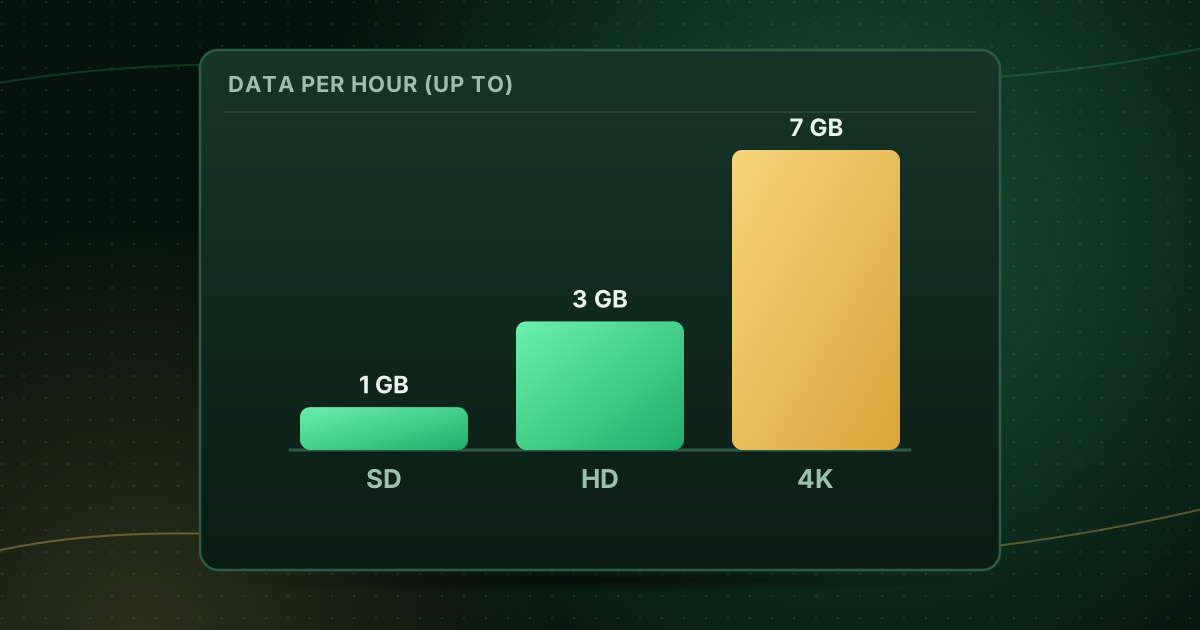
Video is the biggest data user on most phones. Netflix’s help centre, for example, notes that streaming in higher quality uses considerably more data per hour, and offers lower-quality settings to save data. The same principle applies to any player:
- Pick a lower-quality stream if your provider offers SD or “mobile” versions of a channel.
- Turn off auto-play of previews in the player, if available.
- Check per-app data use in Settings → Mobile Data (or Cellular) and turn mobile data off for the player if you only want to watch on Wi-Fi.
- Watch the total: our guide to how much data streaming uses shows typical figures per hour.
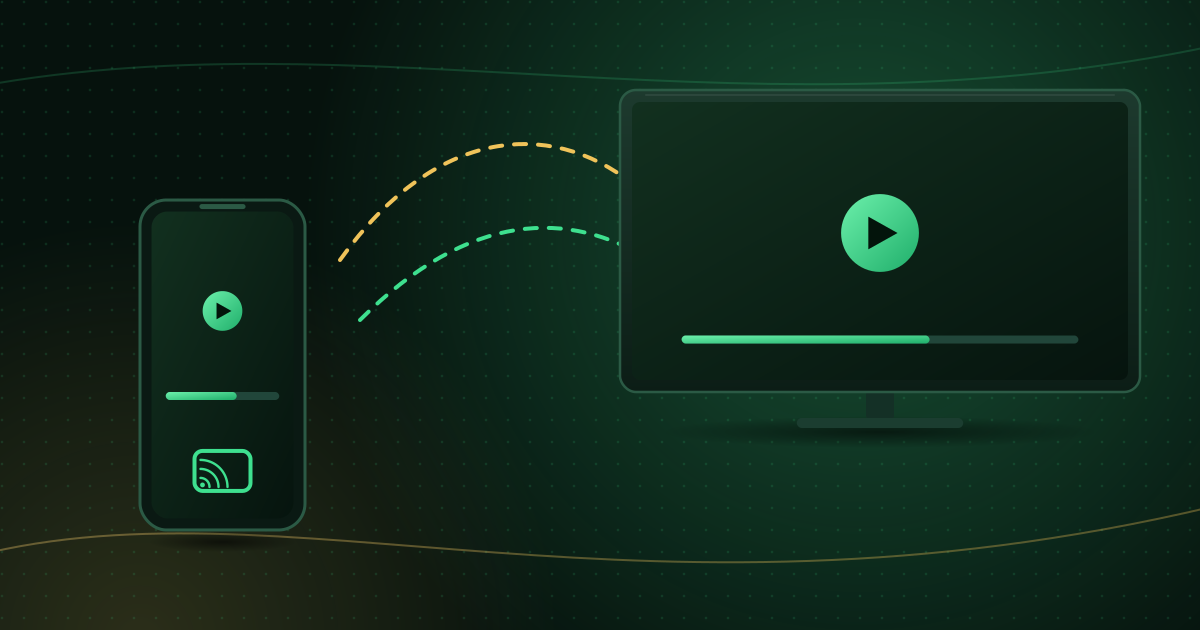
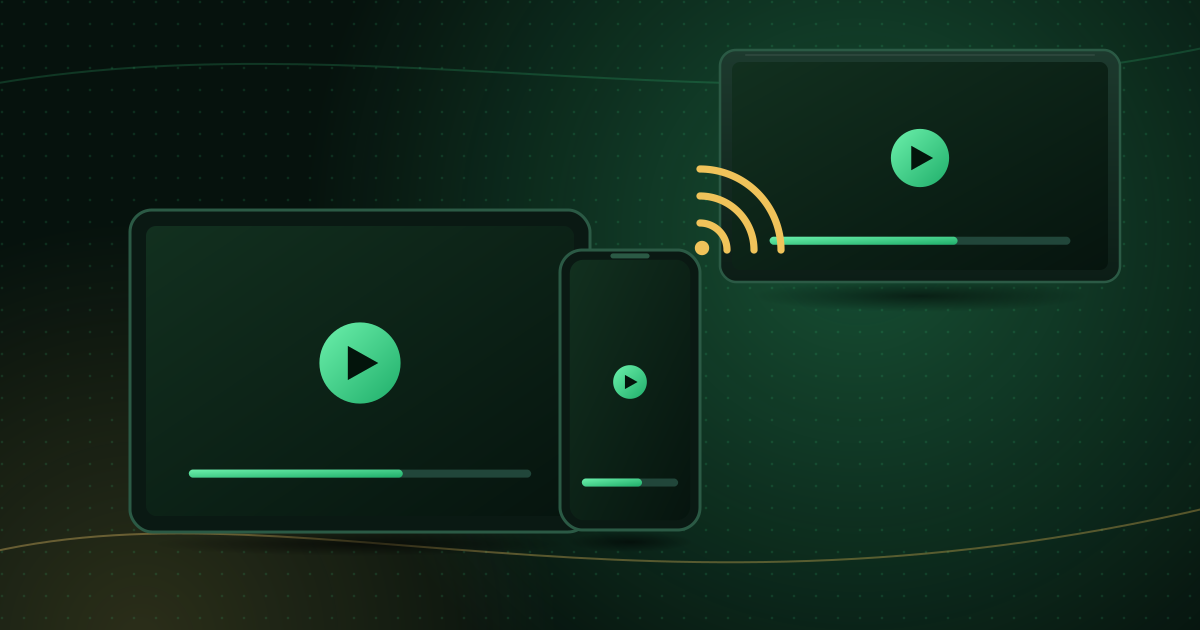
Step 4: Send the stream to your TV with AirPlay
Apple’s AirPlay instructions are:
- Connect the iPhone or iPad and the Apple TV (or AirPlay 2-compatible smart TV) to the same Wi-Fi network.
- Start the video and tap the screen to show the controls.
- Tap the AirPlay button and choose your TV.
- If a passcode appears on the TV, enter it on your device.
If the player has no AirPlay button, you can mirror the whole screen from Control Center → Screen Mirroring, but quality and battery life are usually better with the app’s own AirPlay option. For a comparison with Google Cast and fixes for lag, see how to cast from your phone to your TV.
If you watch on the big screen often, a native app on an Apple TV is smoother than AirPlay; see IPTV on Apple TV.
Keep your account and device secure
- Use the App Store only. iPhone apps from the App Store are reviewed and update automatically.
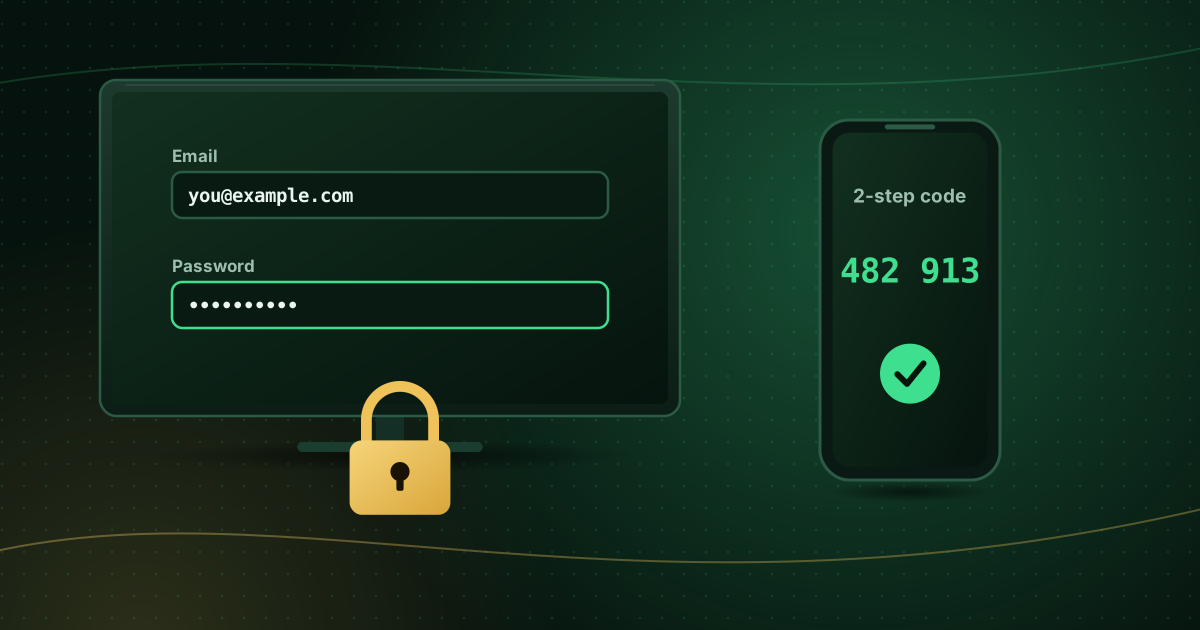
- Do not share your login beyond your plan’s limits; extra devices can lock you out. Our guide to protecting your streaming account covers passwords and phishing.
- Be wary of “free channels” apps that promise premium content for nothing. They are a common sign of unlicensed services.
Troubleshooting on iPhone and iPad
| Problem | Fix |
|---|---|
| Video stops when you lock the phone | Enable Picture-in-Picture or background audio in the player, if supported |
| Login works on TV but not on phone | Check you entered the same server URL and port; mobile networks sometimes block uncommon ports, so test on Wi-Fi |
| AirPlay option missing | Make sure both devices are on the same network and the TV supports AirPlay 2 |
| Stream stutters on mobile data | Choose a lower-quality stream or wait for a stronger signal |
Summary
Install a reputable player from the App Store, add your Xtream Codes or M3U details, set up favourites and the guide, and manage mobile data in iOS settings. When you want the big screen, AirPlay gets you there in seconds.
Sources and further reading
- Apple iPhone User Guide: Get apps in the App Store
- Apple Support: Use AirPlay to stream video or mirror your iPhone or iPad
- Netflix Help Center: How to control how much data Netflix uses
Menus and app availability change with software updates. If a step looks different on your device, check the device or app maker’s help page linked above.