IPTV player apps hide a lot of options behind their settings menus. Most of the time the defaults are fine, but a few settings make the difference between a channel that plays smoothly and one that freezes. This guide explains the settings you will find in most players, what each one changes and a sensible starting value.
Change one setting at a time and test for a few minutes before changing the next. That way you know which change helped.
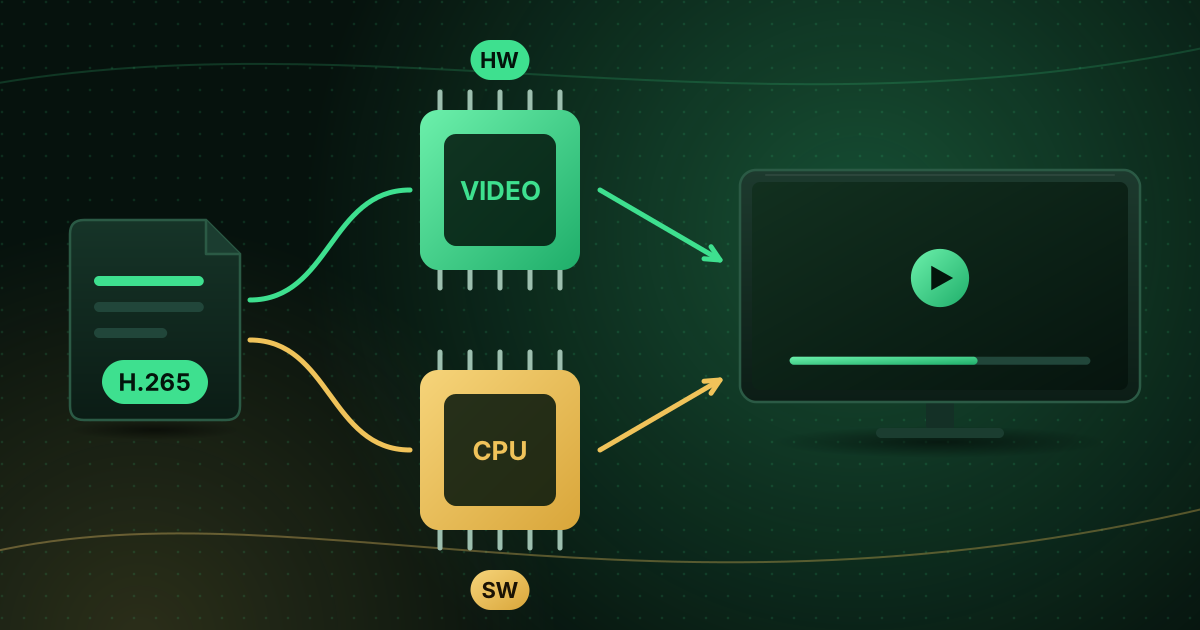
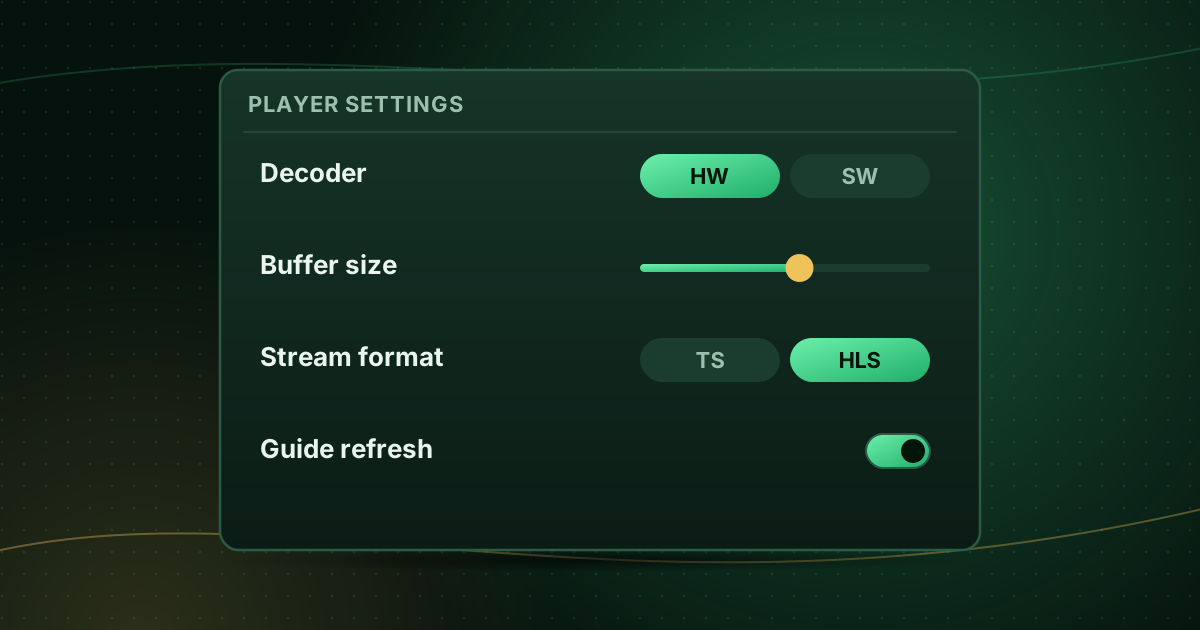
Decoder: hardware or software
What it does: chooses whether video is decoded by your device’s dedicated video chip (hardware) or by the main processor (software).
- Hardware (HW) is efficient and the right default on TVs, sticks and phones.
- Software (SW) is more compatible with unusual streams but uses more processing power; on a weak device it can stutter.
- Some players offer HW+ or similar, a hardware mode with extra compatibility handling.
When to change it: if a particular channel shows a black screen, green artefacts or freezes while audio continues, switch decoder for that channel. Hardware vs software decoding explains why.
Buffer size
What it does: sets how much video the player downloads before it starts playing and keeps in reserve.
- Larger buffer: fewer interruptions on an unstable connection, but slower channel changes and a longer delay behind live.
- Smaller buffer: fast channel switching, but more sensitive to network hiccups.
Starting point: leave it on the default or “medium”. Increase it only if you see short, frequent buffering on a connection that is otherwise fast enough. VLC users can do the same thing with the network caching option.
Stream format: TS or HLS
What it does: some providers offer each channel in more than one delivery format.
- MPEG-TS (
.ts) is a continuous transport stream. - HLS (
.m3u8) delivers video in short segments listed in a playlist; it is widely used on the web and on Apple devices.
When to change it: if a channel does not play or keeps reconnecting, try the other format if your player and provider support both. Our guide to M3U vs M3U8 explains HLS playlists.
User agent
What it does: the user agent is a short text that identifies the app to the server, similar to how a web browser identifies itself.
When to change it: only if your provider tells you to use a specific value. Changing it at random can stop streams from working.
Aspect ratio and zoom
What it does: controls how the picture fills the screen (fit, fill, zoom, 16:9, 4:3).
Starting point: Fit or Auto keeps the correct proportions. Use Fill only if you accept some stretching to remove black bars.
Audio track, audio output and passthrough
- Audio track: choose a language or commentary track when a channel offers several.
- Passthrough: sends Dolby or DTS audio unchanged to a soundbar or receiver. Turn it off if you hear silence on some channels, because your audio system may not support that format.
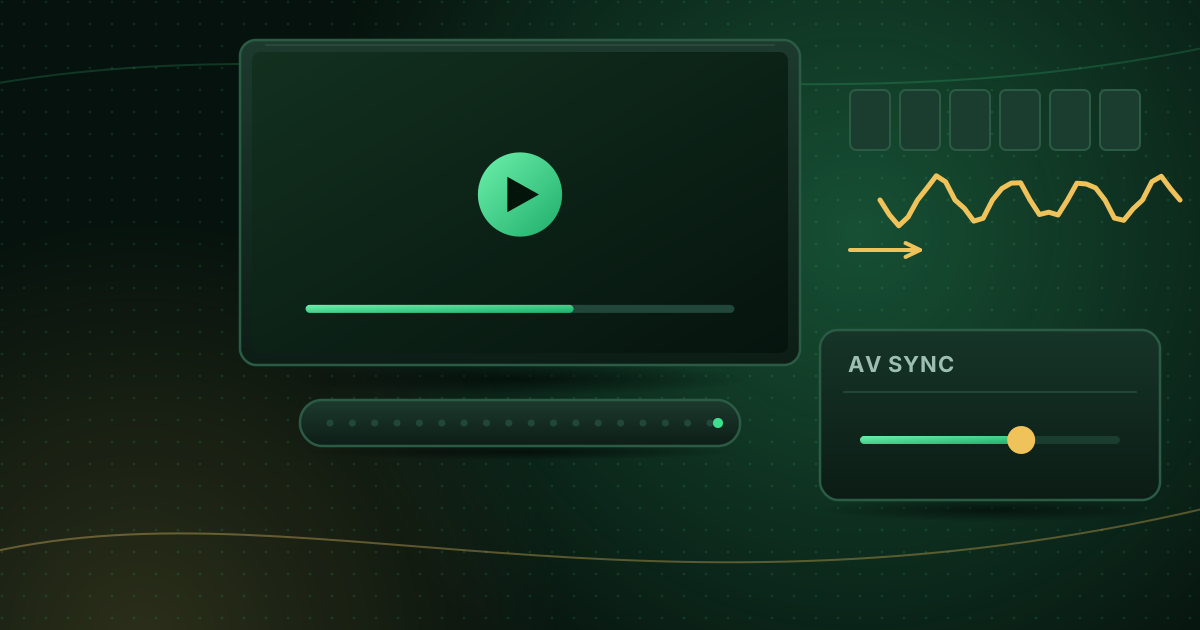
- Audio delay / offset: some players let you shift audio earlier or later. Useful when only one app is out of sync; see how to fix audio out of sync.
Guide (EPG) settings
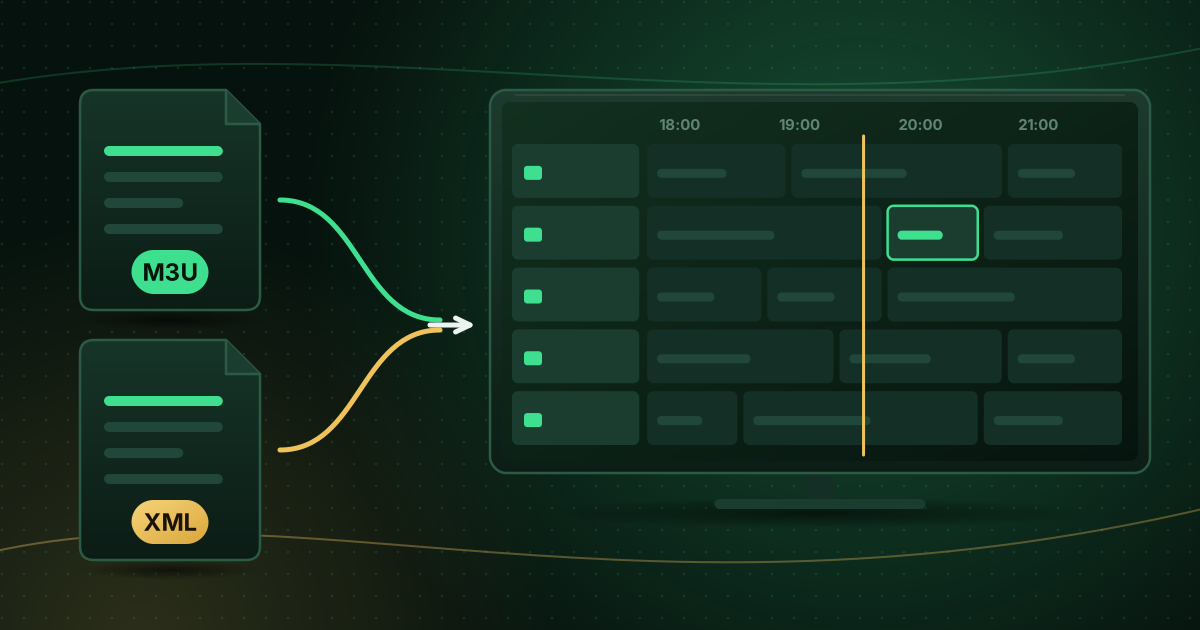
- EPG source: the guide URL for M3U playlists. See adding an EPG URL.
- Refresh interval: how often the guide downloads. Daily is enough for most people.
- Time offset: shifts all guide times when they are consistently early or late.
- Days to keep: more days use more storage; reduce it on low-storage sticks.
Playback behaviour
- Auto-play last channel on start-up.
- Reconnect automatically after a dropout. Keep this on.
- Channel-switch preview or mini-guide.
- Frame-rate matching or “match content”, if the player offers it, for smoother motion.
Parental controls
Set a PIN and lock adult or unsuitable groups. On shared TVs, also lock the settings menu so the playlist cannot be changed.
A quick troubleshooting map
| Problem | Setting to try |
|---|---|
| Black screen on one channel | Decoder mode, then stream format |
| Short, frequent buffering | Buffer size up one step |
| No sound on some channels | Audio passthrough off, or another audio track |
| Guide times off by an hour | EPG time offset |
| Picture stretched | Aspect ratio to Fit/Auto |
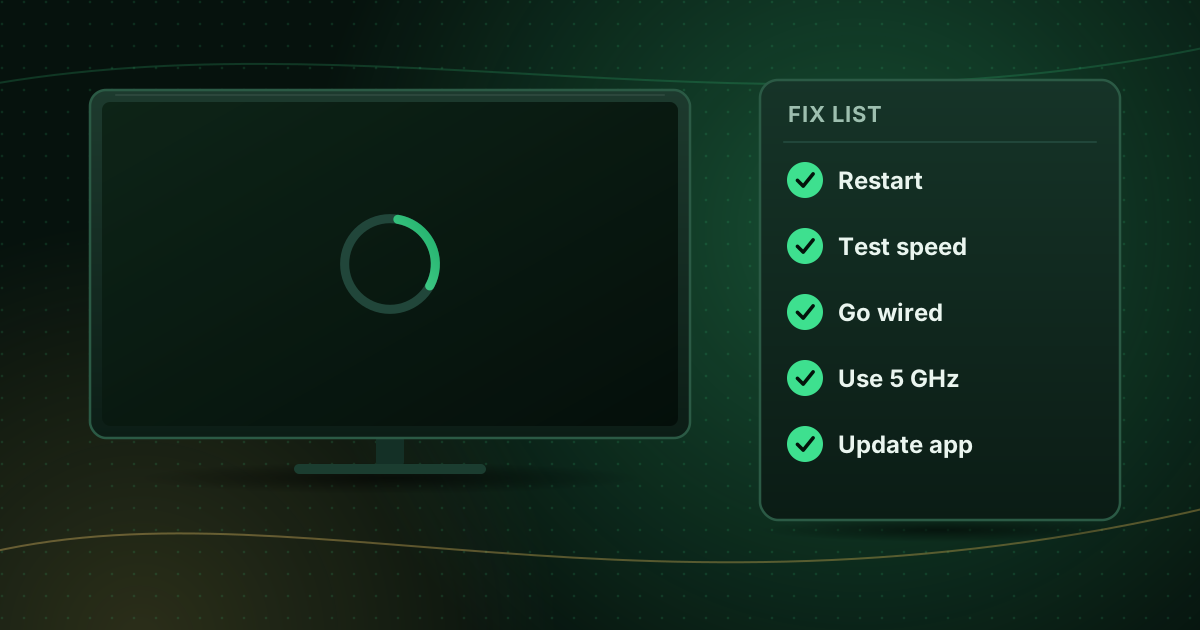
If several channels buffer, the network is more likely than a setting; start with how to stop buffering on live streams or the account-specific Cobra IPTV troubleshooting page.
Summary
Keep defaults unless something is wrong. Then change the decoder for picture problems, the buffer for brief interruptions, the stream format for channels that will not start, and the EPG offset for guide times. Leave the user agent alone unless your provider asks you to change it.
Sources and further reading
Menus and app availability change with software updates. If a step looks different on your device, check the device or app maker’s help page linked above.