Your TV and streaming stick are connected to your home network, often signed in to your Google, Amazon or Apple account, and sometimes linked to payment details. An unsafe app can put all of that at risk. Most problems come from apps installed outside the official stores. This guide explains the warning signs, why sideloading is risky and what protections the stores offer.
Where unsafe streaming apps come from
- APK files from websites, forums, video tutorials or messaging groups (Android, Android TV, Fire TV).
- “Modded” or “premium unlocked” versions of paid apps.
- “Fully loaded” boxes sold with apps already installed. UK government guidance on illicit streaming devices warns about these listings.
- Third-party Kodi builds and add-on bundles from unofficial sources.
- Fake versions of popular apps, with near-identical names and icons.
Why sideloading is risky
Sideloading means installing an app from a file rather than an official store. It bypasses the protections the stores provide:
- No review: files from websites are not checked before you install them.
- Less scanning: Google’s security team has written that attackers often distribute malicious Android apps directly, outside Google Play, to avoid scanning by Play Protect.
- No automatic updates: security fixes do not reach you.
- No accountability: there is often no developer you can contact or report.
Warning signs before you install
| Warning sign | Why it matters |
|---|---|
| Only available as a download link, not in your device’s store | No store review or automatic updates |
| Promises premium channels, films or sports for free | Usually unlicensed content, often bundled with adware or malware |
| Asks you to disable security features | Removes protection for every other app too |
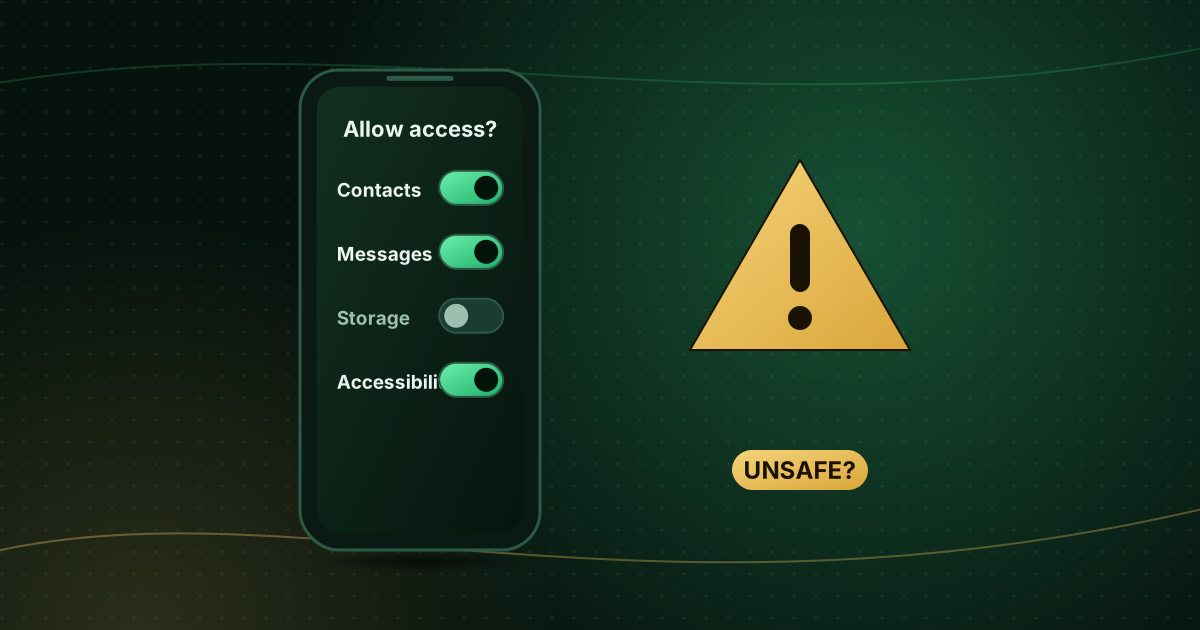
| Requests permissions unrelated to video (contacts, SMS, accessibility) | Possible data theft or device takeover |
| Name or icon slightly different from a well-known app | Common disguise for fake apps |
| No privacy policy or developer details | Nobody accountable for your data |
| Very few reviews, or many identical five-star reviews | Possible fake ratings |
What the official stores do for you
Google Play Protect checks apps on Android devices for harmful behaviour, including apps installed from outside Google Play, and can warn you, disable or remove harmful apps. Keep it switched on: in the Play Store, tap your profile icon, then Play Protect, and check that scanning is enabled.
The Amazon Appstore and Apple App Store review apps before publishing them and push updates automatically. Samsung and LG TV stores also distribute only listed apps.
No store is perfect, but installing from the official store for your device removes most of the risk. Our guide to installing apps on a Fire TV Stick shows the safe process.
Check permissions after installing
- Android and Android TV: Settings → Apps → [app] → Permissions.
- Fire TV: Settings → Applications → Manage Installed Applications → [app] shows app details; on newer Fire OS versions, app permissions are listed there too.
- iPhone and iPad: Settings → Privacy & Security, and each app’s own entry in Settings.
A video player should not need access to your contacts, messages or accessibility services.
If you think you installed an unsafe app
- Uninstall it immediately.
- Turn off “install unknown apps” permissions for any downloader app or file manager.
- Run a Play Protect scan on Android devices.
- Change passwords for accounts used on the device, starting with your email; the UK’s National Cyber Security Centre recommends strong, separate passwords and 2-step verification on important accounts.
- Factory reset the device if it behaves strangely after removing the app.
Our guide to protecting your streaming account covers passwords and 2-step verification in more detail.
Safe alternatives
- Use player apps from the official store and add a playlist from a provider you trust; see free vs paid IPTV player apps.
- Use Kodi only from its official website or store listing, with add-ons from Kodi’s official repository.
- Check a service before paying; is IPTV legal? lists the warning signs of unlicensed services.
Frequently asked questions
Is it safe to install APK files on a Fire Stick?
It carries real risk. An APK from an unknown website has not been checked by a store, will not update automatically and may contain malware. Install from the Amazon Appstore whenever possible.
A streaming app is asking for lots of permissions. Should I allow them?
Only allow permissions that make sense for a video player, such as storage for downloads. Contacts, SMS, call logs or accessibility access are red flags; deny them and consider uninstalling the app.
Does antivirus software help on a TV?
On Android devices, keep Google Play Protect on. Beyond that, the most effective protection is installing only from official stores and removing apps you do not recognise.
Summary
Install streaming apps only from your device’s official store, keep Play Protect and automatic updates on, and be wary of anything that promises premium content for free or asks for unrelated permissions. If something slips through, uninstall it, switch off unknown-source installs and change your passwords.
Sources and further reading
- Google Play Help: Use Google Play Protect
- Google Security Blog: Google Play Protect in 2018
- Advanced Television (2017): UK IPO issues guidance on illicit streaming devices
- NCSC: Top tips for staying secure online
Menus and app availability change with software updates. If a step looks different on your device, check the device or app maker’s help page linked above.