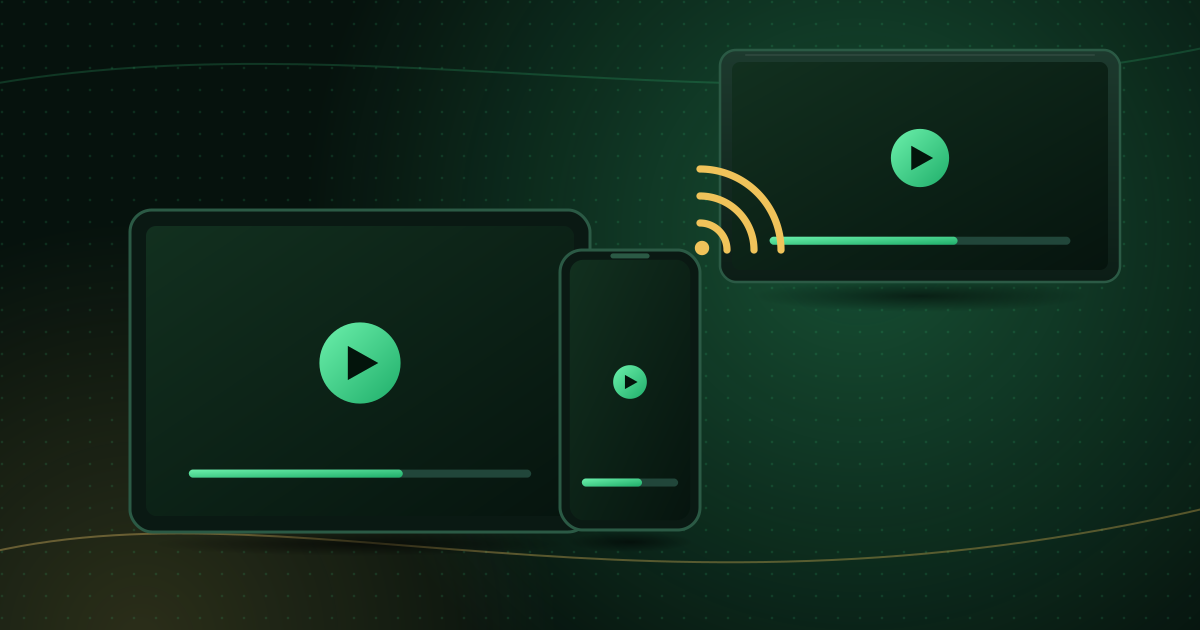
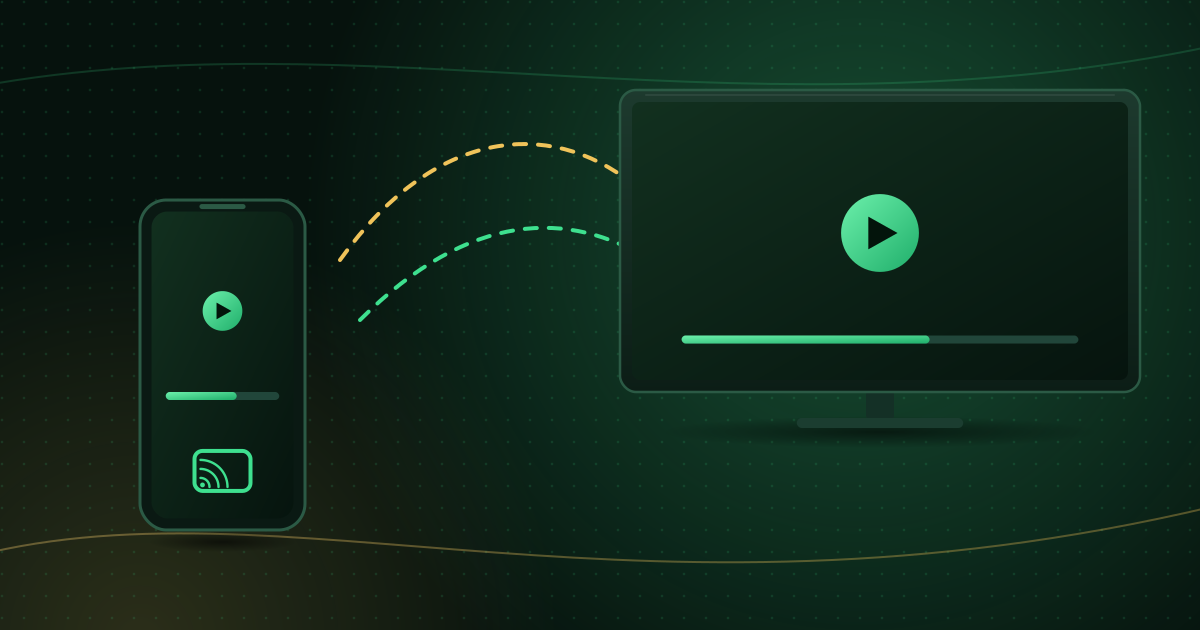
Casting lets you start a video on your phone and watch it on your TV without cables. There are two main systems: Google Cast, used by Chromecast and most Google TV and Android TV devices, and Apple AirPlay, used by Apple TV and many recent smart TVs. This guide explains the difference between casting and mirroring, gives step-by-step instructions for both systems, and shows how to fix lag and dropouts.
Casting vs mirroring: what is the difference?
- Casting from an app sends the video’s address to the TV, and the TV fetches the stream itself. Your phone becomes a remote: you can lock it or use other apps, and quality is as good as the TV’s connection allows.
- Screen mirroring copies everything on your phone’s screen to the TV in real time. It works with any app but uses more battery, can lag, and shows notifications on the big screen.
Rule of thumb: use the app’s own Cast or AirPlay button whenever it has one, and mirror only as a fallback.
What you need
- A TV or streaming device that supports Google Cast or AirPlay 2.
- Your phone and the TV on the same Wi-Fi network. Guest networks and some mesh setups isolate devices from each other, which stops casting from working.
- An app that supports casting, or a phone that supports screen mirroring.
How to cast with Google Cast (Android and iPhone)
From an app
- Open the app and start the video.
- Tap the Cast icon (a rectangle with Wi-Fi waves).
- Choose your TV or streaming device.
Mirror your whole Android screen
Google’s help centre describes mirroring through the Google Home app:
- Make sure your phone runs Android 8.0 or later and is on the same Wi-Fi network as the TV.
- Open the Google Home app.
- Press and hold the tile for your TV.
- Tap Cast → Cast my screen → Cast screen.
To stop, press and hold the tile again and choose Stop mirroring.
How to use AirPlay (iPhone and iPad)
Apple’s AirPlay instructions are:
- Connect your iPhone or iPad and the Apple TV or AirPlay 2-compatible TV to the same Wi-Fi network.
- Start the video and tap the screen to show the controls.
- Tap the AirPlay button and choose the TV.
- Enter the passcode if one appears on the TV.
To mirror instead, open Control Center, tap Screen Mirroring and choose the TV. Tap Stop Mirroring to end.
Why casting lags or drops out, and how to fix it
1. Weak or crowded Wi-Fi
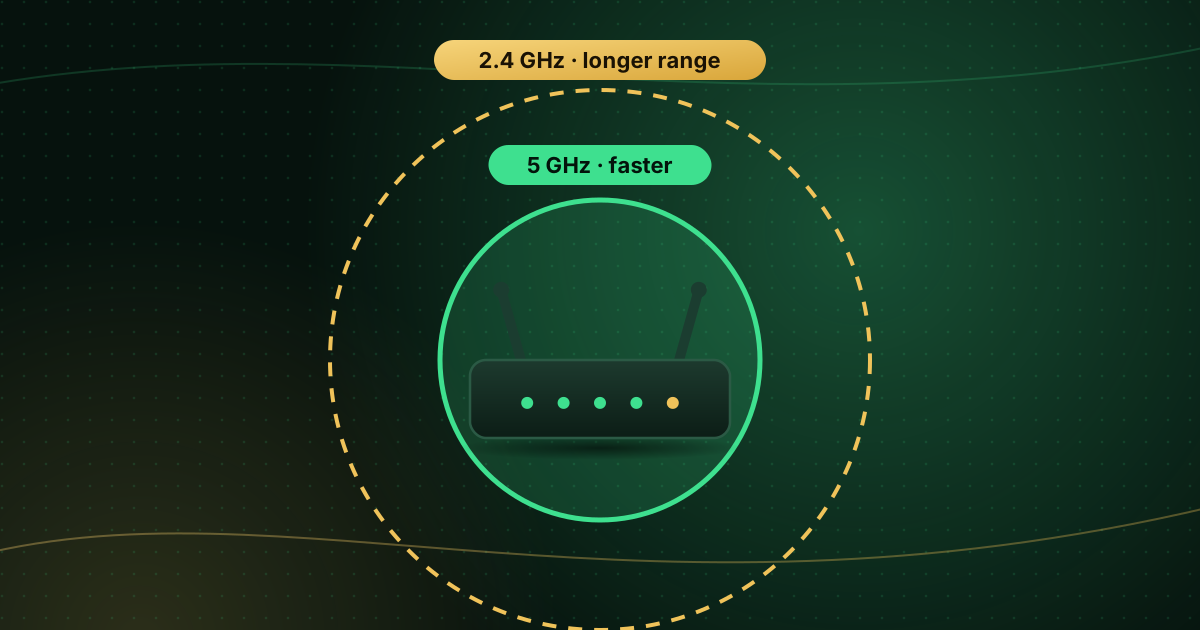
Casting depends on the Wi-Fi between your router and the TV. Move the router into the open, keep the TV within a room or two, and use the 5 GHz band where possible. Our comparison of 2.4 GHz vs 5 GHz Wi-Fi explains why.
2. Mirroring instead of casting
Mirroring re-encodes your screen continuously. If the app has a Cast or AirPlay button, use it instead.
3. Battery saver on the phone
Aggressive battery saving can throttle Wi-Fi while mirroring. Google itself suggests keeping the device charged during long mirroring sessions.
4. Device isolation on the network
If the TV never appears in the list, check that neither device is on a guest network, and that your router’s “AP isolation” or “client isolation” setting is off for your main network.
5. VPN on the phone
A VPN can prevent the phone from finding the TV on the local network. Pause it while casting, or enable local network access in the VPN app.
Does casting work with IPTV player apps?
Some IPTV players include a Cast or AirPlay button; others do not. If yours does not:
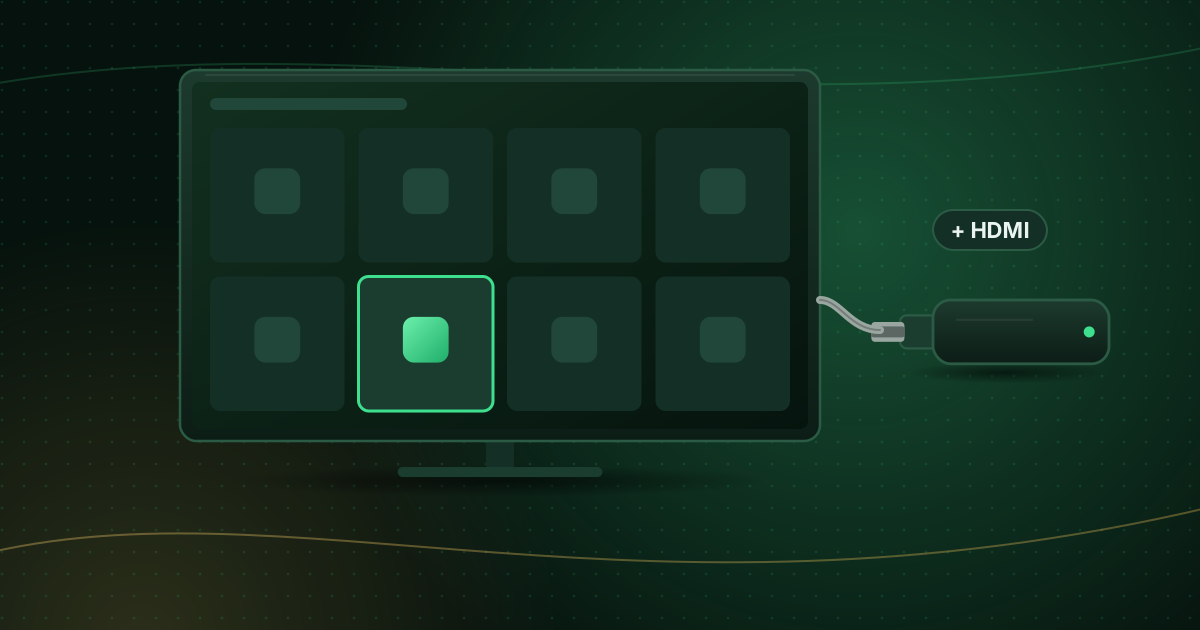
- Install the player directly on the TV or streaming device, which is more reliable for regular viewing. See our guides for Android TV, Apple TV and Fire TV.
- Use screen mirroring as a temporary solution.
Casting also counts as a stream on your account. If your plan allows one connection, stop playback on the phone once the TV takes over. Simultaneous streams explained covers how limits work.
Smart TV app or casting?
If you cast every evening, a dedicated app on the TV or a streaming stick will usually feel faster and keep your phone free. Our guide to Smart TV apps vs a streaming stick helps you choose.
Frequently asked questions
Why does casting lag?
Lag usually comes from screen mirroring (which re-encodes the whole screen), weak Wi-Fi between the router and the TV, or battery saving on the phone. Use the app’s own Cast or AirPlay button where possible and improve the Wi-Fi signal at the TV.
Can I cast an IPTV player to Chromecast or Google TV?
If the player has a Cast button, yes. If not, you can mirror your Android screen through the Google Home app, or install a player directly on the Google TV device for a smoother experience.
Does casting use my phone’s mobile data?
When you cast from an app, the TV fetches the stream over your home Wi-Fi. Make sure the phone is on Wi-Fi, not mobile data, before you start.
Summary
Use the Cast or AirPlay button inside the app for the best quality, mirror only when an app has no casting support, and keep both devices on the same strong Wi-Fi network. For phone-specific setup, see IPTV on iPhone and iPad and IPTV on Android phones and tablets.
Sources and further reading
- Google Help: Cast your Android screen from the Google Home app
- Apple Support: Use AirPlay to stream video or mirror your iPhone or iPad
Menus and app availability change with software updates. If a step looks different on your device, check the device or app maker’s help page linked above.