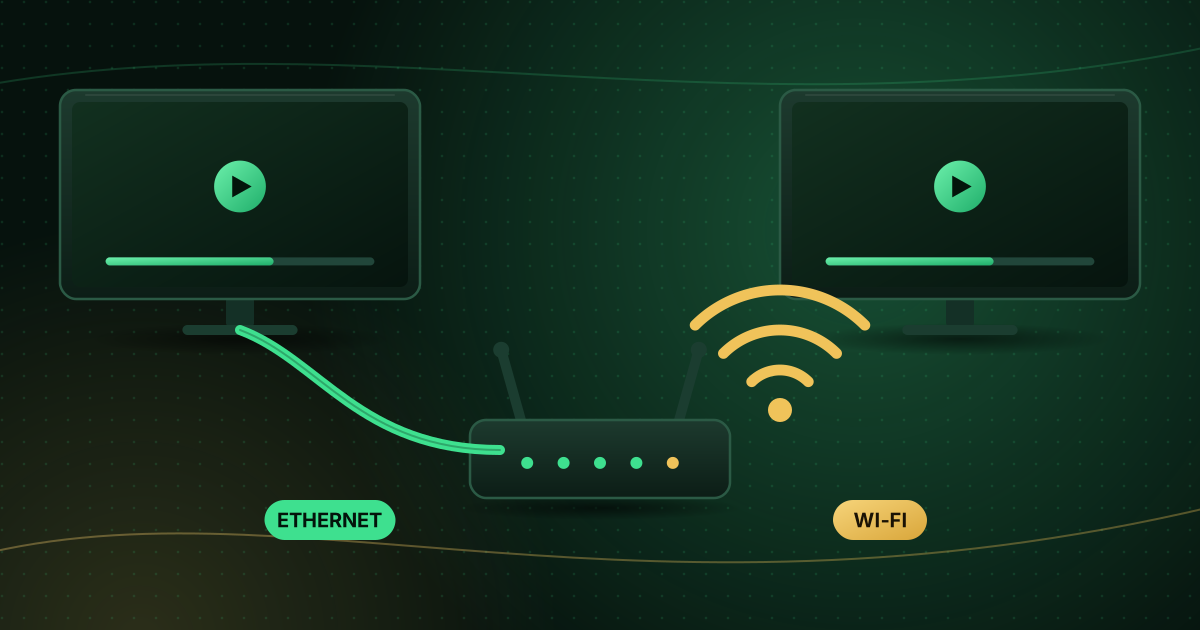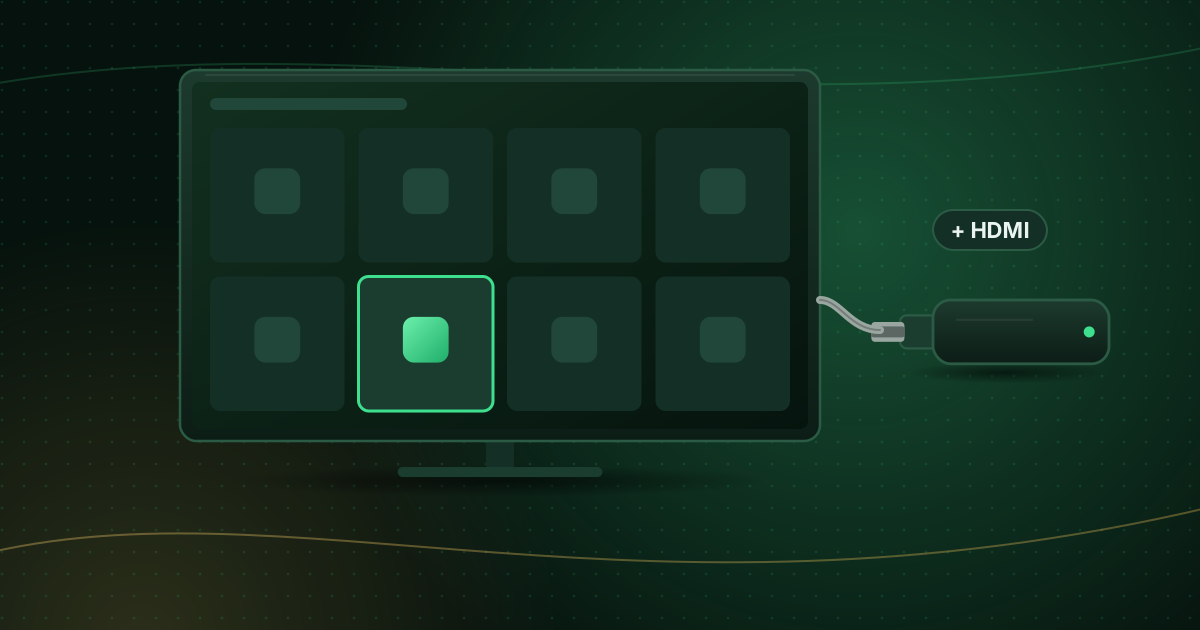
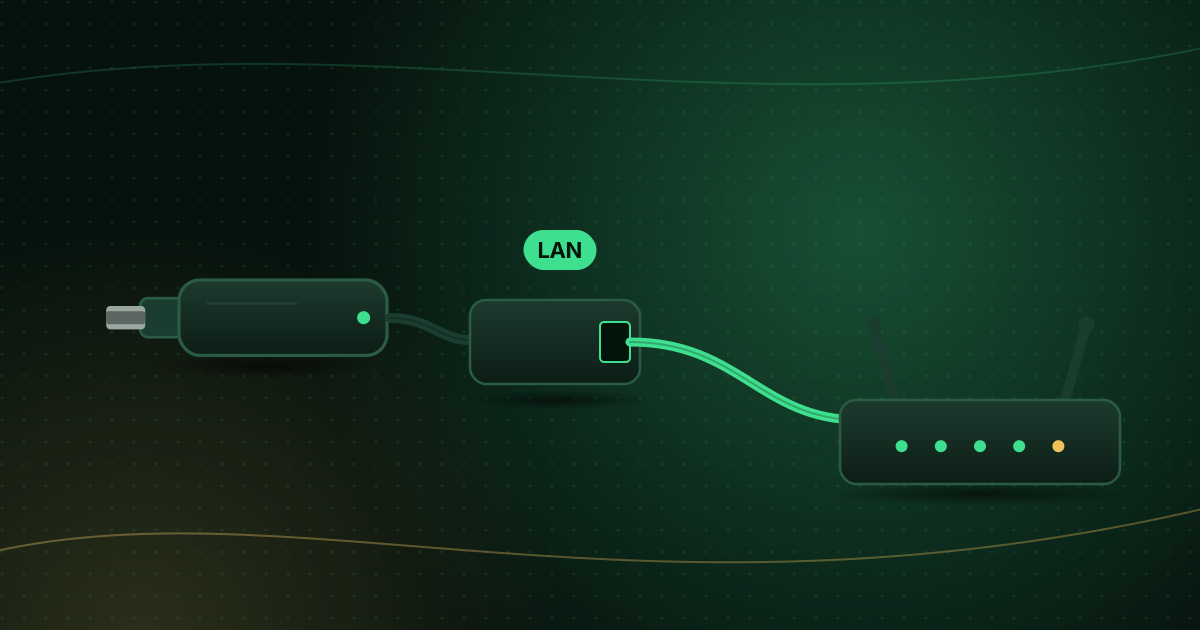
Fire TV Sticks have no network port, so they rely on Wi-Fi. For on-demand video that is usually fine, because apps can build a large buffer. Live TV is less forgiving: there is little time to buffer, so every Wi-Fi hiccup shows up as a freeze. An Ethernet adapter gives the stick a wired connection. Here is when it helps, which type you need and how to set it up.
What an Ethernet adapter fixes, and what it does not
It helps when:
- Your Wi-Fi signal at the TV is weak or the router is in another room.
- Buffering happens at busy times when many devices use Wi-Fi.
- You live in a flat with many neighbouring Wi-Fi networks crowding the airwaves.
- The stream stutters even though your speed test result looks fine; a cable removes Wi-Fi interference and variability.
It will not fix:
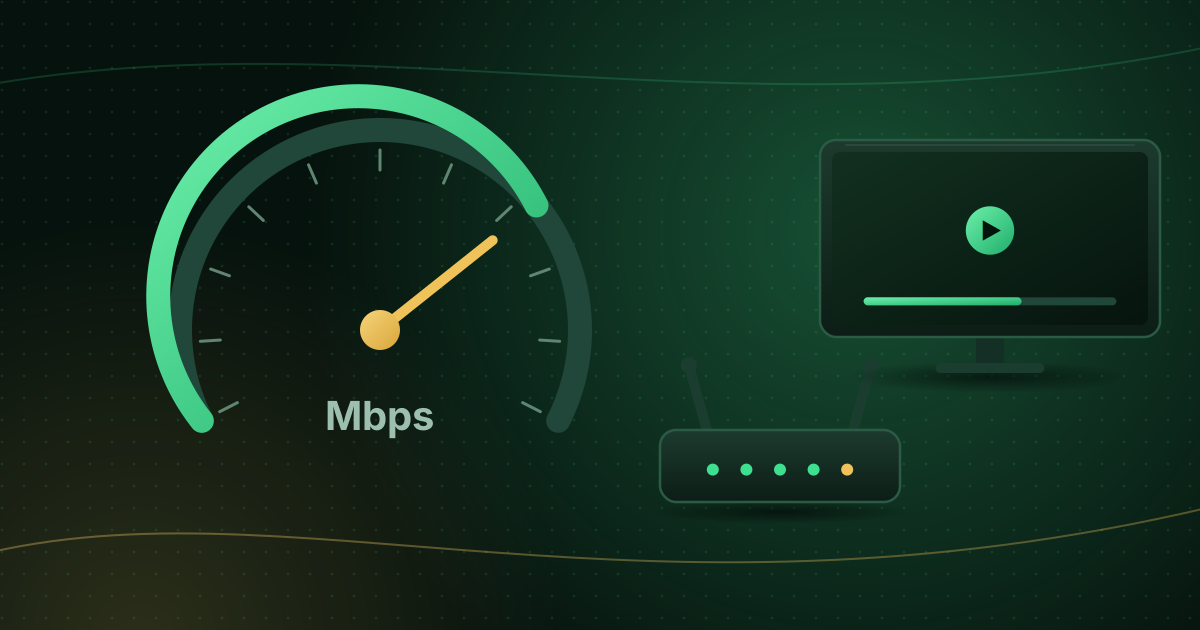
- An internet plan that is too slow for the quality you want. Netflix recommends at least 5 Mbps for 1080p and 15 Mbps for 4K, and the FCC suggests around 25 Mbps for 4K streaming; see our internet speed guide for household totals.
- Problems with a specific channel or source.
- A stick that is out of storage or memory; see Fire TV Stick buffering fixes.
Which adapter does your Fire TV need?
Fire TV models use either a micro-USB or a USB-C power port, and the adapter has to match:
- Older and many current sticks use micro-USB.
- Some newer models use USB-C.
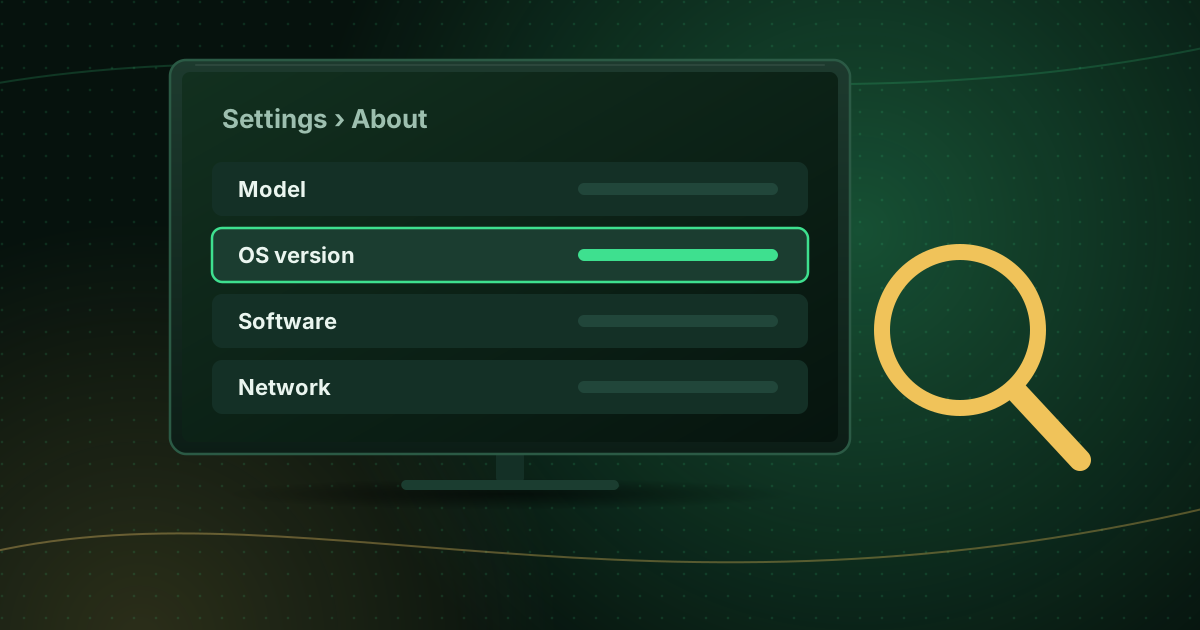
Amazon sells official Ethernet adapters and lists the compatible Fire TV models on each product page. Check your exact model under Settings → My Fire TV → About and confirm it on the listing before you buy. Some adapters are limited to 100 Mbps; that is still well above what a single 4K stream needs, so it is rarely a bottleneck for streaming.
Official or third-party?
Third-party adapters work if they are designed for Fire TV and supply enough power. Cheap, unbranded ones can cause instability or fail to power the stick properly. An adapter that combines power and Ethernet in one unit keeps cabling tidy.
How to set it up
- Unplug the Fire TV Stick’s power cable.
- Plug the stick’s USB cable into the adapter, and the adapter into the wall power supply.
- Connect an Ethernet cable from the adapter to your router, switch or powerline adapter.
- Turn the stick on. It normally detects the wired connection automatically.
- Check under Settings → Network: you should see a wired or Ethernet connection.
You do not need to delete your Wi-Fi network; the stick prefers the wired connection when it is available.
No cable run to the TV? Alternatives
| Option | Pros | Cons |
|---|---|---|
| Powerline adapters (network over mains wiring) | No new cables through walls | Speed depends on your electrical wiring |
| Mesh Wi-Fi with a node near the TV | Stronger signal everywhere | Still wireless; a wired backhaul is best |
| Move the router | Free | Not always possible |
| 5 GHz Wi-Fi | Faster and less crowded than 2.4 GHz | Shorter range |
Our full comparison of Wi-Fi vs Ethernet for streaming goes into more detail.
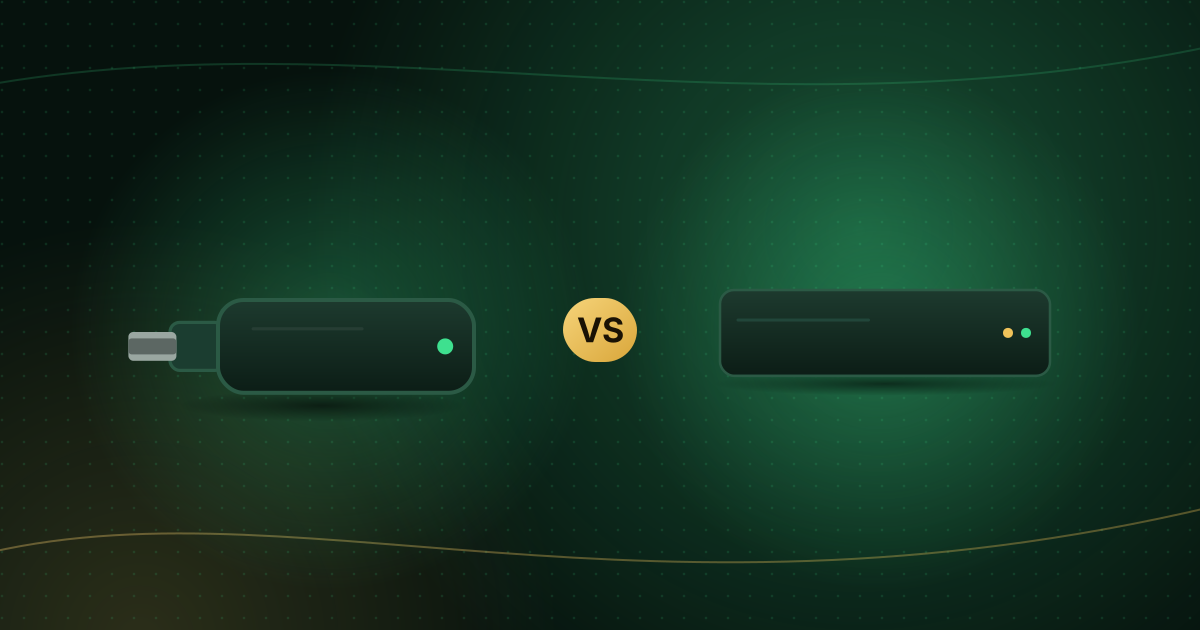
Does a wired Fire TV Stick beat an Android TV box?
Many Android TV boxes include an Ethernet port, which saves buying an adapter. If you are still choosing hardware, compare the two in Fire TV Stick vs Android TV box.
Frequently asked questions
Does Wi-Fi 6 make an Ethernet adapter unnecessary?
Wi-Fi 6 improves speed and copes better with many devices, but it is still affected by distance, walls and interference. If your stick supports Wi-Fi 6 and sits close to a Wi-Fi 6 router, you may not need a cable. If live channels still stutter, Ethernet remains the most reliable fix.
Does a wired connection reduce delay?
A cable usually gives lower and steadier latency than Wi-Fi, which helps live streams start faster and recover from hiccups. It does not change the delay between the live broadcast and the stream itself.
Can I use a USB hub with Ethernet instead?
Some hubs combine Ethernet, power and USB ports and work with streaming sticks, but power delivery and compatibility vary. Choose one designed for your device, or use the manufacturer’s adapter.
Summary
If your Fire TV Stick buffers on live channels and your internet plan is fast enough, an Ethernet adapter is one of the most effective upgrades you can make. Match the adapter to your stick’s power port, power it from the wall and plug in a cable to the router. If a cable is impossible, powerline adapters or a mesh node near the TV are the next best options.
Sources and further reading
Menus, apps and settings change with software updates. If something looks different on your device, check the official help pages from your device maker or app developer.