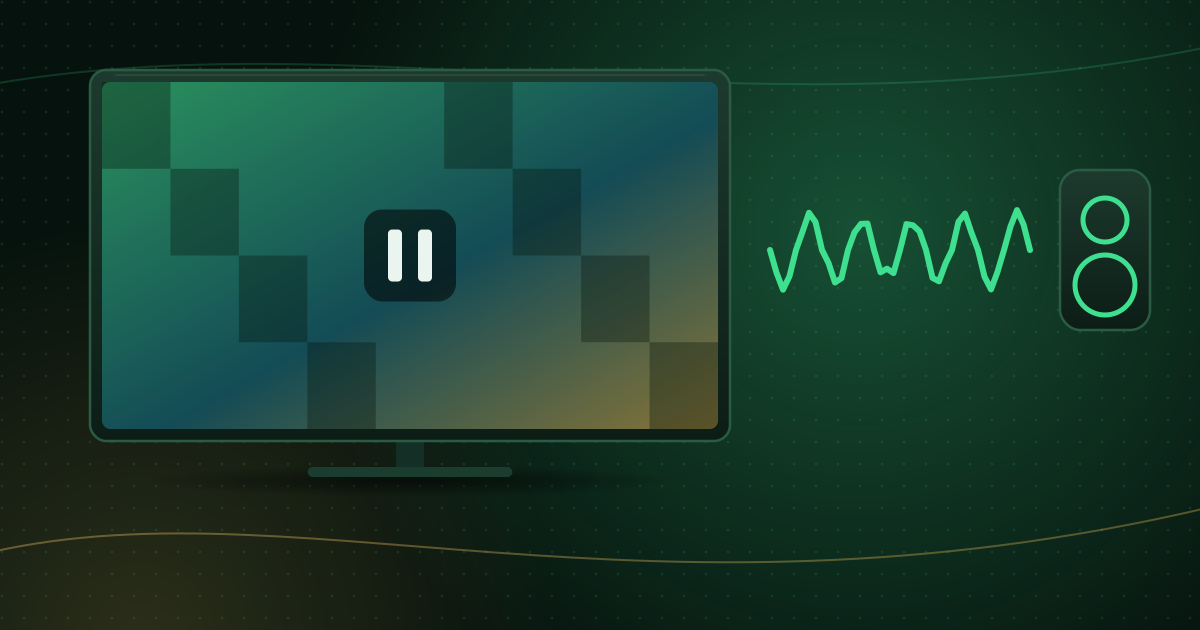
When the picture stops but the sound carries on, it is tempting to blame the internet connection. Usually, though, the network is fine: if data were not arriving, the audio would stop too. Frozen video with working audio almost always points to decoding, device performance or display issues. This guide explains each cause and how to fix it.
Why audio keeps going when video freezes
Audio needs far less data and processing than video. If your device struggles to decode or display the video, it can still keep up with the audio, so you hear the programme while the picture sticks. That is why the fixes below focus on the player and the device rather than the connection.
Step 1: Check whether it affects one channel or all
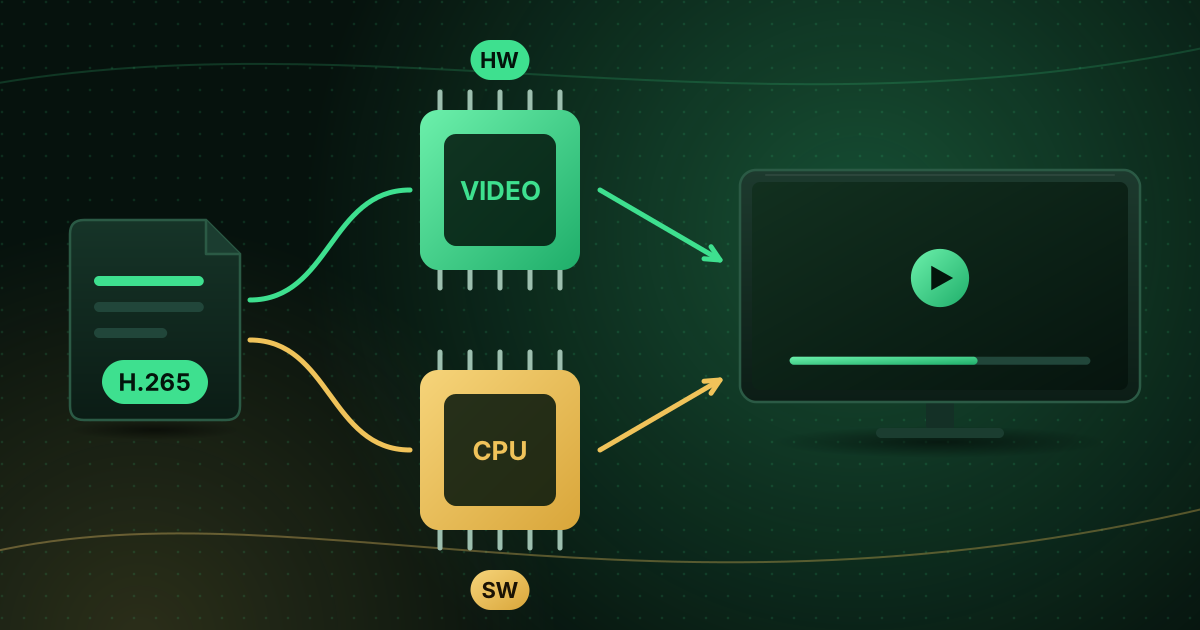
- One or a few channels only: they may use a format or profile your device decodes poorly, often HEVC (H.265) or an unusual frame rate.
- Every channel: the device may be overloaded, overheating or set up incorrectly.
Step 2: Switch the decoder mode
This is the fix that works most often.
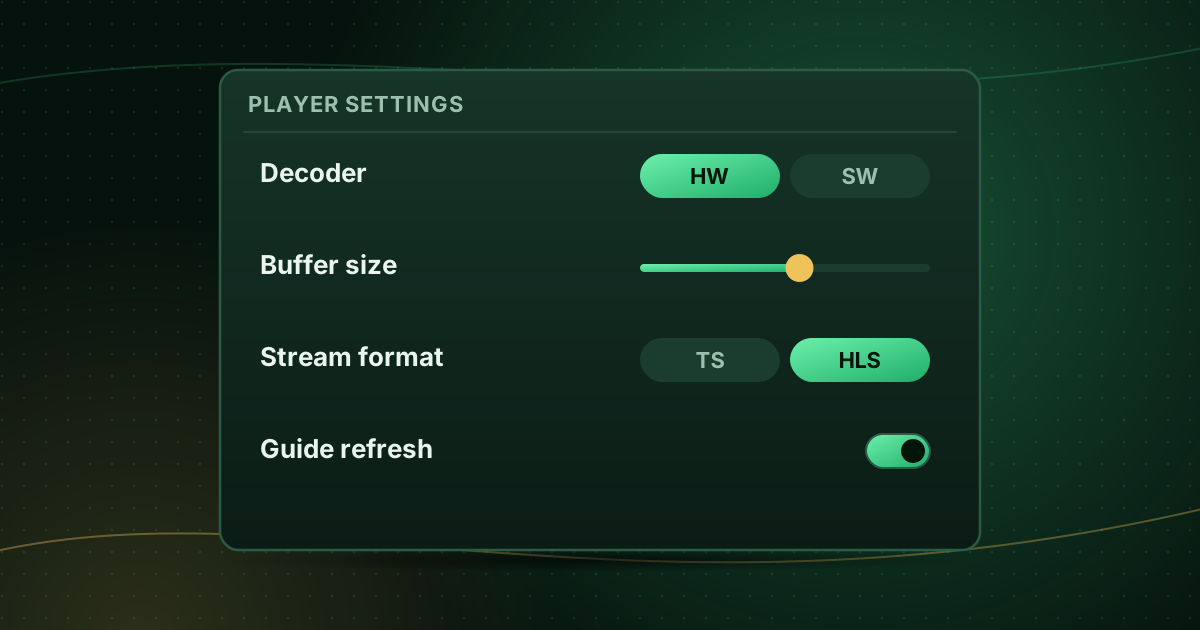
- Open the player’s settings (or the channel’s options).
- Find Decoder or Hardware acceleration.
- If it is on hardware, switch to software (or HW+, if available), and test.
- If it is on software, switch to hardware, and test.
Hardware decoding uses the device’s video chip and is efficient; software decoding is more compatible but heavy on the processor. Our explainer on hardware vs software decoding explains which to use when.
Step 3: Update the player and the system
Decoder bugs are a common reason for freezes, and updates regularly fix them. Update the player from the official app store and install any system updates on the TV or stick.
Step 4: Free up the device
A device that is low on memory or storage can fall behind on video while audio keeps playing.
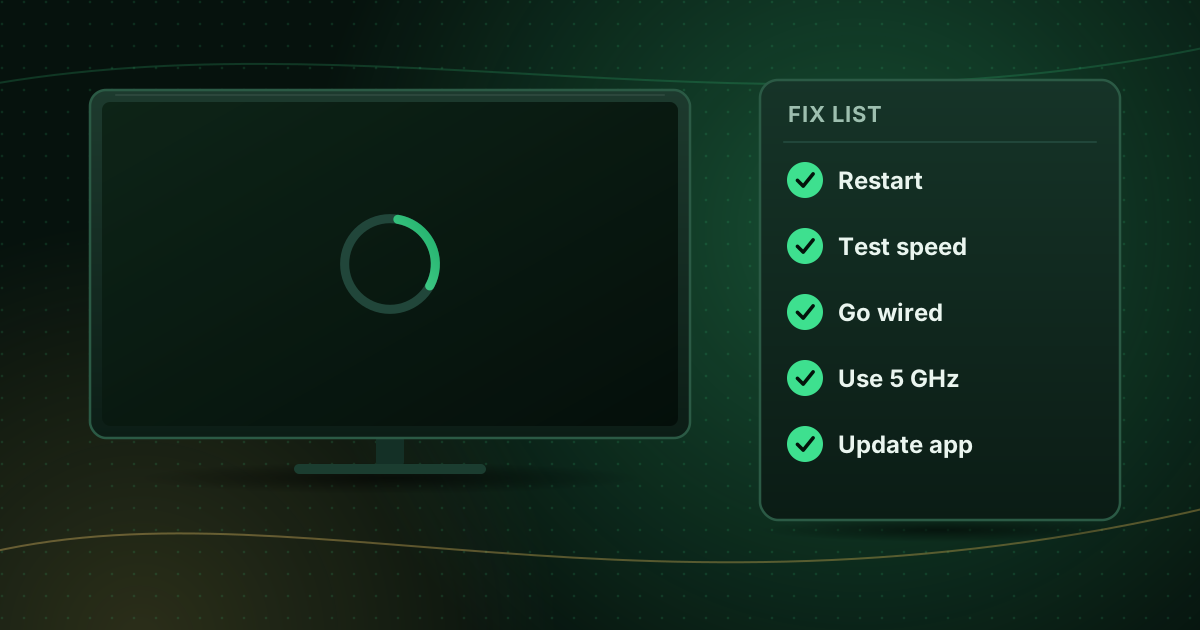
- Restart the device to clear memory.
- Close other apps.
- Clear the player’s cache and uninstall unused apps; see clearing cache on Fire TV and Android TV.
Step 5: Check frame-rate and resolution settings
Mismatched display settings can cause stutter and freezes:
- Turn on frame-rate matching (“match content”) if your device and player offer it, or try turning it off if the freeze happens when a channel starts.
- Set the device’s output resolution to Auto or to your TV’s native resolution.
- If your TV has motion-smoothing features, try turning them off.
Step 6: Try another stream format or quality
If your player can switch between HLS and MPEG-TS, or your provider offers an HD and an SD version of the channel, try the alternative. A lower-resolution version needs less decoding power. Settings are described in IPTV player settings explained.
Step 7: Check the HDMI chain
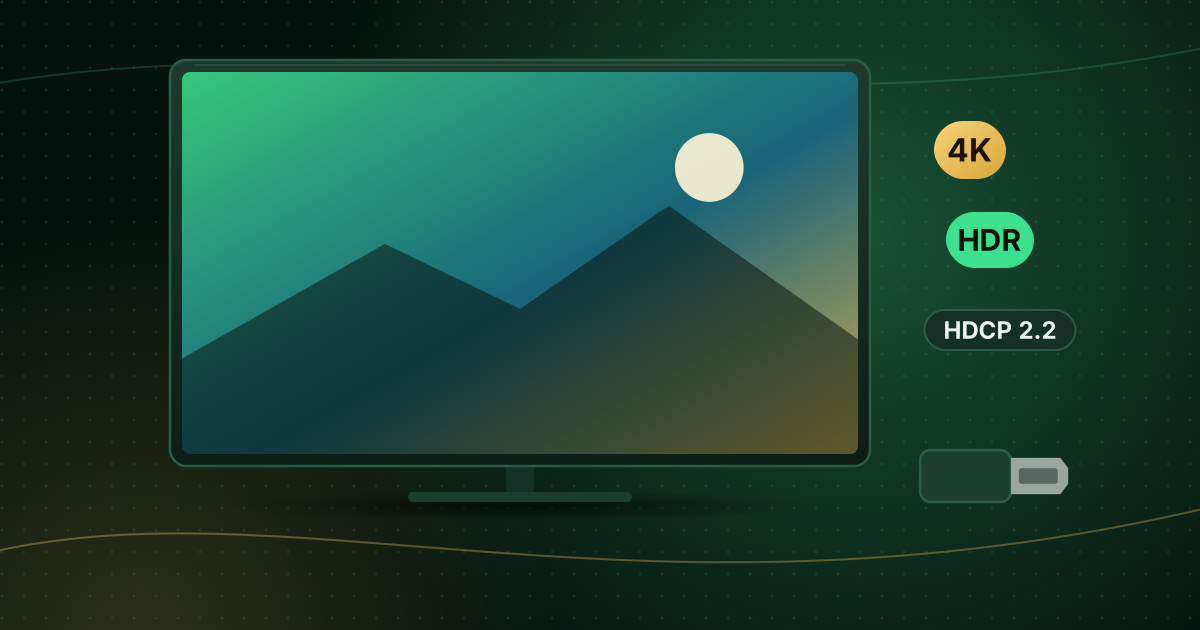
Faulty HDMI cables, adapters or soundbars between the device and the TV can drop video frames. Connect the device directly to the TV with a good cable to test. For 4K content, the cable and port must support the full bandwidth; see 4K HDR streaming requirements.
Step 8: Consider the device’s limits
Older or entry-level devices may not decode HEVC or high-bitrate 4K smoothly in hardware. If freezes only happen on 4K or HEVC channels and every other fix has failed, the device is likely at its limit. A newer device with hardware HEVC support is the real solution.
Quick reference
| Pattern | Most likely cause | First fix |
|---|---|---|
| Freezes on specific channels only | Codec/profile the device handles poorly | Switch decoder for that channel |
| Freezes every few minutes on all channels | Device overload or overheating | Restart, free storage, ventilate |
| Freezes at channel start, then OK | Frame-rate switching | Toggle match-content setting |
| Freezes with 4K only | Hardware limit or HDMI bandwidth | Lower quality, check cable |
| Video and audio both stop | Network | See how to stop buffering |
Frequently asked questions
Could it still be my internet connection?
Rarely. If data stopped arriving, sound would usually stop too. If both picture and sound freeze together, look at the network instead.
Will a new HDMI cable help?
It can, particularly for 4K or HDR, where an old or long cable may drop frames. Try a certified Premium High Speed or Ultra High Speed cable connected directly to the TV.
Why do only HEVC channels freeze?
HEVC (H.265) is demanding to decode. If your device lacks hardware HEVC support, or supports only some HEVC profiles, those channels will struggle while H.264 channels play normally.
Summary
If the sound continues while the picture freezes, start with the decoder setting, then update and free up the device, check frame-rate options and try a different stream format. If none of that helps on 4K or HEVC channels, your hardware is probably the bottleneck. For everything else, the Cobra IPTV troubleshooting checklist covers the other common playback problems.
Sources and further reading
Menus, apps and settings change with software updates. If something looks different on your device, check the official help pages from your device maker or app developer.