Few things are more distracting than lips moving before the words arrive. Audio sync problems (“lip sync” or AV sync) have a handful of causes, and the right fix depends on where the delay is introduced: the stream, the app, the streaming device, the TV or the sound system. This guide helps you find the source and fix it.
Step 1: Work out where the delay comes from
| Test | What it tells you |
|---|---|
| Does it happen on every channel and app? | The device, TV or sound system is adding delay |
| Only in one app? | That app or its settings |
| Only on one channel? | The stream itself; report it to the provider |
| Only with a soundbar, receiver or Bluetooth headphones? | The audio device or its connection |
| Gets worse over time, then resets when you change channel? | Player or stream timing problem |
Step 2: Quick fixes that often work
- Change channel and come back, or stop and restart playback.
- Restart the streaming device, the TV and the soundbar. Restarting every device in the chain clears many temporary sync issues.
- Update the app and system software.
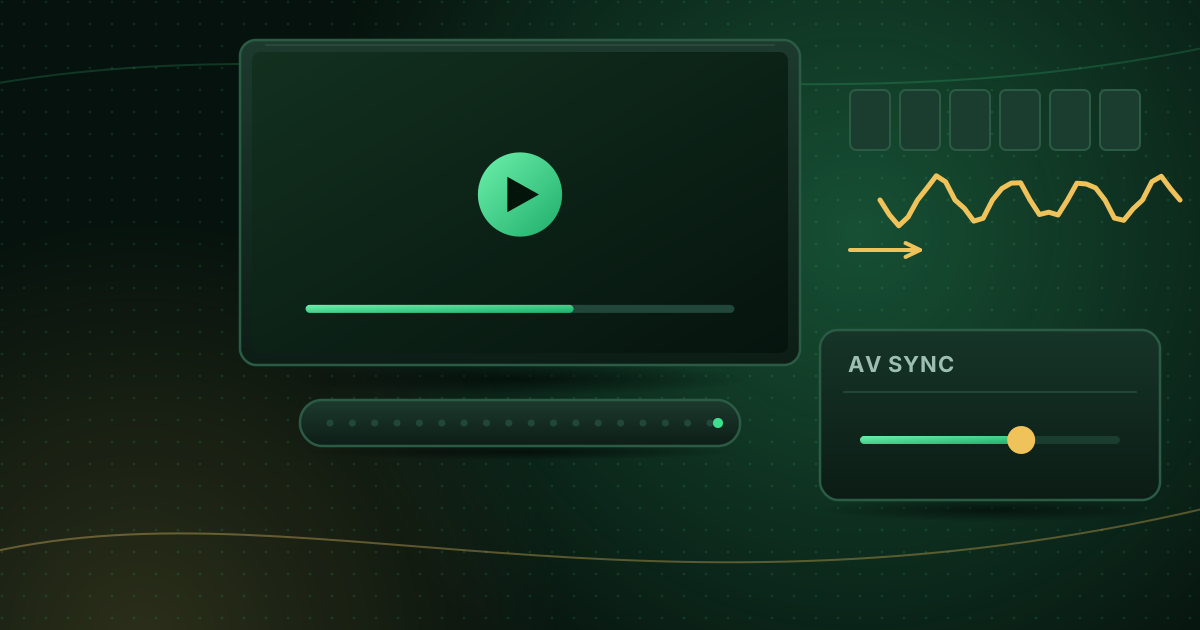
Step 3: Use the streaming device’s AV sync setting
Most streaming devices can delay audio or video to bring them back together.
Fire TV
Amazon describes an AV Sync Tuning option under Settings → Display & Sounds (or Display & Audio) → Audio → AV Sync Tuning. It plays a test with a bouncing ball, a flash and a tone:
- If the tone comes before the flash, move the slider to the right.
- If the tone comes after the flash, move it to the left.
- Press Select to apply and check again.
Amazon notes the slider is not available on every Fire TV smart TV, and that Fire TV keeps separate offsets for HDMI and Bluetooth output. For home-theatre setups that use Alexa Home Cinema, Amazon points to a separate Lip Sync Tuning option.
Other devices
Google TV devices, Apple TV and many smart TVs have similar settings under their audio menus, sometimes called audio delay, lip sync or AV sync. Apple TV also offers a Wireless Audio Sync feature for AirPlay speakers that uses an iPhone’s microphone.
Step 4: Fix soundbar and receiver delays
Sound systems process audio (decoding Dolby, adding effects), which takes time.
- Use HDMI eARC/ARC where possible; the TV and sound system can coordinate the delay automatically.
- Turn on the TV’s or soundbar’s lip-sync / “auto AV sync” option.
- Try a different audio format: switching the TV or device output from passthrough (bitstream) to PCM can remove processing delay, at the cost of surround formats.
- Disable extra sound effects on the soundbar to test.
Step 5: Bluetooth headphones and speakers
Bluetooth adds noticeable delay. Some devices compensate automatically; others do not.
- Use the device’s Bluetooth AV sync option if it has one (Fire TV keeps a separate Bluetooth offset).
- Prefer headphones and codecs designed for low latency.
- For regular TV viewing, a wired or dedicated TV headset avoids the problem.
Step 6: Adjust the player’s audio offset
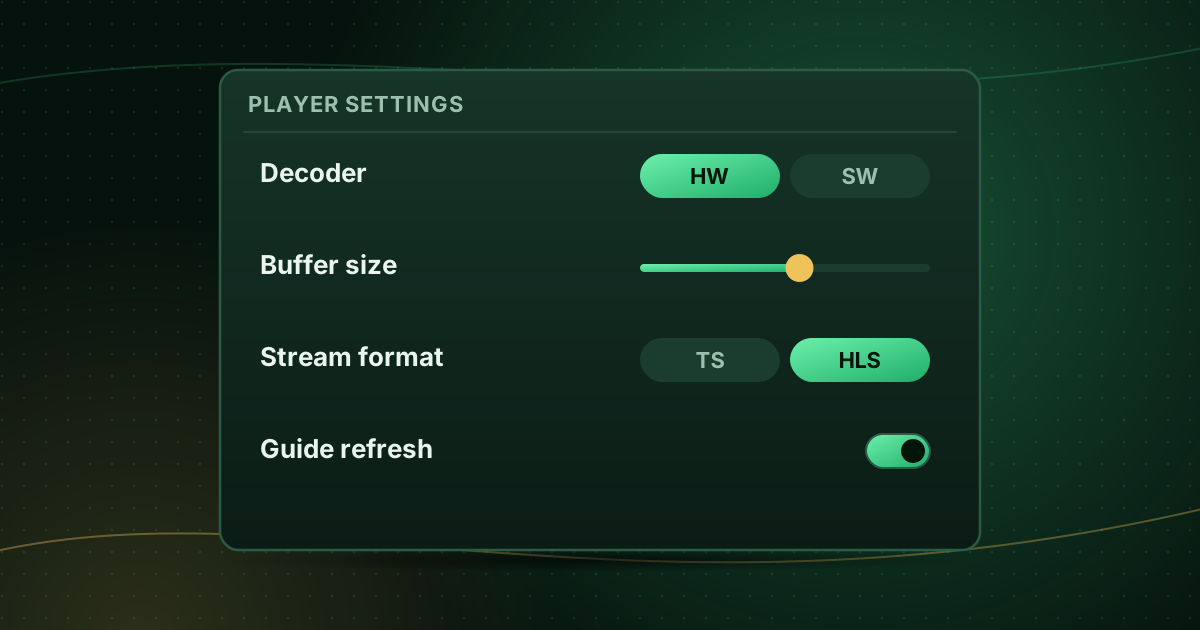
If only one app is out of sync, look in its settings for audio delay, audio offset or sync. Many IPTV players let you shift audio in small steps (for example 50 ms). Amazon also notes that the Fire TV-wide offset is constant, so it will not fix a single app that drifts; the app’s own setting is the better place. See IPTV player settings explained.
Step 7: Try the other decoder
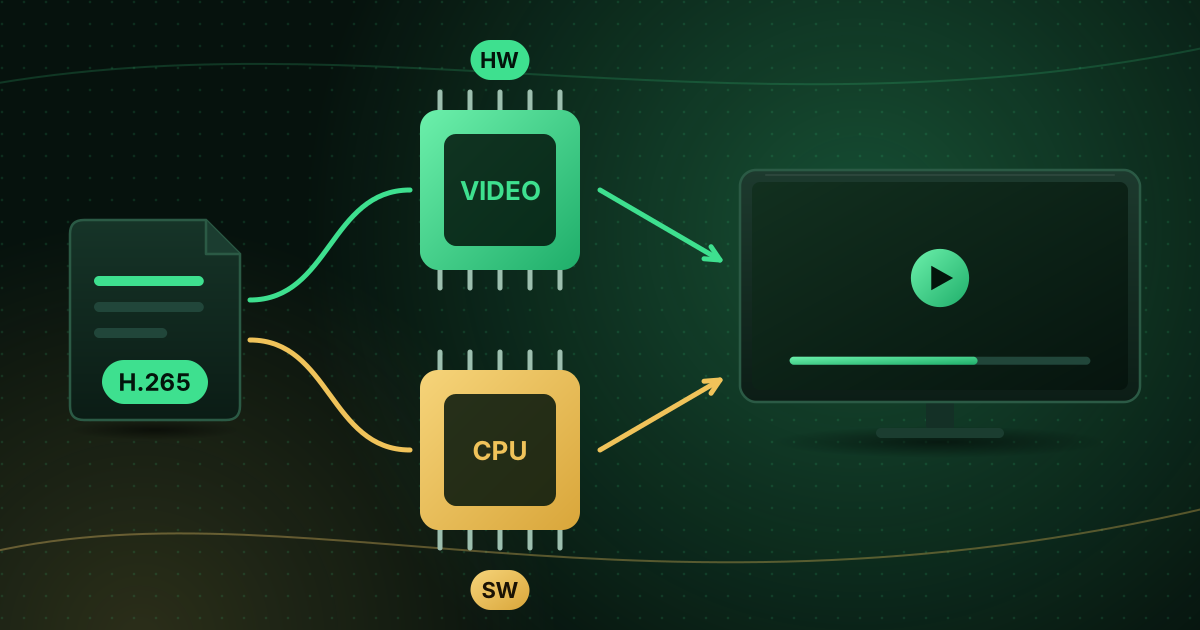
Occasionally the video decoder introduces the delay. Switching between hardware and software decoding can re-align audio on a problem channel. Hardware vs software decoding explains the trade-offs.
Step 8: Check the TV’s picture processing
Heavy picture processing, such as motion smoothing, noise reduction or some HDR effects, delays the picture. Game mode removes much of this processing, which can bring video forward relative to audio. If that fixes sync, turn individual processing features off in your normal picture mode instead.
When the stream itself is out of sync
If one channel is out of sync on every device and app, the problem is in the stream. Note the channel and time and report it to your provider; you cannot fix a source-level offset reliably from your end.
Summary
Find where the delay comes from, restart the whole chain, then use the device’s AV sync setting, your sound system’s lip-sync options or the player’s audio offset. Bluetooth and heavy TV processing are common culprits. For other playback issues, see the Cobra IPTV troubleshooting page, and if picture and sound also stutter, read Fire TV Stick buffering fixes.
Sources and further reading
Menus and app availability change with software updates. If a step looks different on your device, check the device or app maker’s help page linked above.