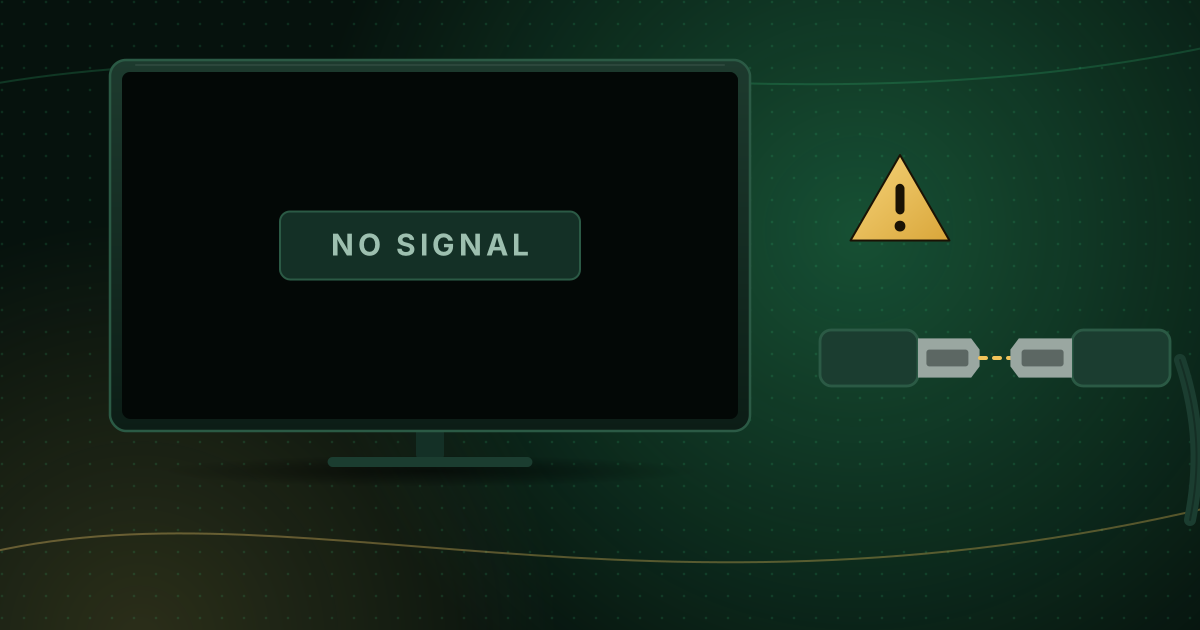
You plug in a streaming stick, switch on the TV and get “No Signal”. It looks alarming, but in most cases the stick is fine: the TV is on the wrong input, the stick is not getting enough power, or the HDMI connection cannot carry the picture. Work through these checks in order, starting with the simplest.
1. Select the right input
The most common cause is the TV showing a different HDMI input from the one the stick is plugged into. If the stick is in HDMI 2 and the TV is on HDMI 1, you will see “No Signal”.
- Press the Input or Source button on the TV remote and choose the port the stick uses.
- Look at the label next to the port on the TV.
2. Check the power
- Use the power adapter supplied with the stick, plugged into a wall socket. TV USB ports often cannot supply enough power, and an under-powered stick may not start or may restart repeatedly.
- Check whether the stick’s light (if it has one) comes on.
- Try a different socket and avoid loose extension leads.
3. Reseat the connection
- Unplug the stick from the TV and from power.
- Wait 30 seconds.
- Plug it firmly back into the HDMI port, then reconnect power.
If the stick came with a short HDMI extender, try with and without it; extenders improve Wi-Fi reception but are an extra connection that can fail.
4. Try another HDMI port
HDMI ports fail, and some TVs support 4K HDR only on specific ports. Move the stick to another port and select that input. If the stick works there, the first port may be faulty or set to a mode the stick does not like.
5. Remove anything in between
Soundbars, AV receivers, switches and splitters between the stick and the TV can break the connection, especially at 4K with HDR, because every device in the chain must support the same HDMI and HDCP versions. Connect the stick directly to the TV to test.
6. Reset the output resolution
If the stick is set to a resolution or refresh rate the TV cannot display, the TV shows nothing. Many Fire TV models let you cycle resolutions from the remote: iFixit’s troubleshooting guide describes holding Up and Rewind together for about five seconds, after which the device steps through resolutions; choose Use current resolution when the picture appears. Other devices have their own reset method; check the manufacturer’s help pages.
7. Check the TV’s HDMI settings
Some TVs have per-input settings such as “HDMI UHD colour”, “Input signal plus” or “enhanced format”. With a non-4K stick or an older cable, turning the enhanced mode off can restore the picture; with a 4K HDR stick, turning it on may be needed for 4K. Our guide to 4K HDR streaming requirements explains these settings and HDCP.
8. Try a different cable or TV
- If the stick uses a separate HDMI cable (some boxes do), try another one. For 4K HDR, use a certified Premium High Speed or Ultra High Speed HDMI cable; HDMI.org’s certification tests cables for the full bandwidth 4K HDR requires.
- Try the stick on another TV. If it works there, the problem is your TV’s port or settings; if it fails everywhere, the stick may be faulty.
9. Restart and update
Once you have a picture, install pending system updates. A failed or interrupted update can occasionally leave a device unable to start normally; if the picture comes back only intermittently, check for updates first.
10. When it is the hardware
If the stick shows no light, gets hot without starting, or fails on several TVs with the original power supply, it is likely faulty. Contact the manufacturer, especially if the device is under warranty.
Quick reference
| Symptom | Likely cause |
|---|---|
| “No Signal” right away | Wrong input or no power |
| Picture flickers or drops at 4K | Cable, port or HDCP issue |
| Works on one TV, not another | TV port or HDMI settings |
| Picture appears, then disappears on start-up | Resolution or refresh-rate setting |
| No light, no picture anywhere | Hardware fault or power supply |
Summary
Select the right input, power the stick from the wall, reseat it, try another port and remove anything between the stick and the TV. Then reset the resolution and check the TV’s HDMI settings. Most “No Signal” problems are solved by the first four steps. Once it works, if playback stutters, see Fire TV Stick buffering fixes, and if you are still choosing hardware, compare options on our compatible devices page.
Sources and further reading
Menus, apps and settings change with software updates. If something looks different on your device, check the official help pages from your device maker or app developer.